


Projects and Ideas

How to Etch a Portrait on Mirror
Etching a mirror is a precise way to create custom designs on glass. This guide explains how to etch a mirror using modern laser methods, offering updated steps, tips, and FAQs to help beginners and professionals achieve consistent results when etching mirrors.
Read moreProjects and Ideas

Laser Marking Metal Business Card : The Ultimate Guide
In conclusion, laser marking metal business cards is an effective way to create stunning and memorable cards that leave a lasting impression. By using the Monport fiber laser marking machine, you can produce high-quality metal business cards, metal engraved business cards, and laser engraved metal bank cards that will set your brand apart from the competition. Invest in this advanced technology and elevate your business to new heights.

8 Laser Engraved Wood Anniversary Gifts
Anniversaries are a celebration of love, commitment, and the time spent together by a couple. A thoughtful and unique laser engraved wood anniversary gift can make this occasion even more special. In recent years, laser engraved wood anniversary gifts have emerged as a popular and personalized way to express your love and appreciation. The combination of natural wood and intricate engraving creates a timeless piece that can be cherished for years to come. In this blog, we have curated a list of 8 laser etching device engraved wood gifts for anniversary that will surely impress your significant other. Custom Engraved Cutting Board A custom engraved cutting board is a practical and beautiful gift for couples who enjoy spending time in the kitchen. You can personalize the board with the couple's names, wedding date, or a special message. Choose from various wood types, such as bamboo, walnut, or cherry, to suit their taste and kitchen décor. This functional gift will serve as a reminder of your love every time they prepare a meal, making it one of the most thoughtful gifts for wooden anniversary. Personalized Photo Frame A picture is worth a thousand words, and a personalized photo frame can make that memory even more special. Laser engrave a wooden photo frame with a heartfelt message, the couple's names, or the anniversary date. Add their favorite photo from their wedding or a memorable moment spent together to make this gift truly one-of-a-kind. This is undoubtedly one of the most sentimental wood anniversary gifts. Engraved Wooden Wall Art Celebrate your love story with a custom engraved wooden wall art. Choose a design that symbolizes your relationship, such as a tree with your initials carved into it, a romantic quote, or a significant date. The beauty of wood and the intricacy of the laser engraving will create a stunning piece of art that will be a constant reminder of your love and commitment, making it a perfect choice among wood gifts for anniversary. Personalized Wooden Coasters For the couple that enjoys entertaining, a set of personalized wooden coasters is a thoughtful and useful gift. Choose from various designs and customize them with the couple's initials, names, or a special message using a laser etching device. These coasters will not only protect their furniture but also serve as a conversation starter during gatherings. This is another excellent option for gifts for wooden anniversary. Engraved Wooden Jewelry Box A beautifully engraved wooden jewelry box is the perfect way to store precious memories and keepsakes. Customize the lid with a romantic quote, the couple's names, or a significant date. The intricate engraving and natural wood grain make this a timeless and elegant wood anniversary gift. Wooden Anniversary Clock Mark the passage of time together with a personalized wooden anniversary clock. Choose a design that reflects the couple's style and customize it with their names and wedding date. This functional piece of art will serve as a daily reminder of the time they have spent together and the many more years to come, making it a meaningful choice among wood gifts for anniversary. Personalized Wooden Wine Box For the wine-loving couple, a personalized wooden wine box is the perfect anniversary gift. Laser engrave the lid with a special message, the couple's names, or the anniversary date. Add their favorite bottle of wine to complete the gift. This thoughtful and unique present will be a cherished keepsake for years to come, and it is an ideal choice when looking for gifts for wooden anniversary. Engraved Wooden Recipe Book For the couple that loves to cook together, a personalized wooden recipe book is a thoughtful and practical gift. Engrave the cover with their names, a special message, or a meaningful quote using a laser etching device. The couple can fill the pages with their favorite recipes, creating a collection of cherished memories and delicious meals. This is another fantastic option among wood anniversary gifts. In conclusion, laser etching device engraved wood anniversary gifts offer a unique and personalized way to celebrate your love. The natural beauty of wood combined with intricate engraving creates a timeless piece that will be cherished for years to come. Consider one of these 8 gift ideas for your next anniversary celebration and make it an unforgettable experience for both of you. These wood gifts for anniversary are not only beautiful but also meaningful, ensuring that your significant other will treasure them for a lifetime.
How to Make a Custom T-shirt with Monport 40W Laser
Creating a custom t-shirt is an excellent way to express your unique style and personality. With the Monport 40W Laser, it’s easier than ever to create a standout laser engraved t shirt that looks clean, modern, and built to last. In this blog post, we'll walk you through the process of making a laser print t shirt using the Monport 40W Laser, especially when paired with black laser marking spray for bold, high-contrast designs. We’ll also explain why more creators are choosing to laser engrave t shirt designs instead of using traditional printing methods. Unlock Big Savings at Monport Laser! Use code BESTMP10 at checkout for an exclusive discount – Click here to shop now! Why Choose an Engraved T-shirt? An engraved t-shirt offers a unique look that immediately feels premium and different. A laser engraved t shirt is not only stylish but also durable, since the design becomes part of the fabric rather than sitting on top of it. Unlike screen printing or heat transfers that can crack or peel, a laser print t shirt made with a CO₂ laser holds up well over time. Another reason many creators prefer to laser engrave t shirt designs is precision. The Monport 40W Laser can produce fine details, sharp edges, and consistent results that are difficult to achieve with other techniques. This makes it ideal for logos, text, and intricate artwork. Materials You'll Need To create your custom engraved t-shirt, you'll need the following materials: A plain t-shirt (preferably cotton or a cotton blend, which works best for a laser engraved t shirt) Monport 40W Laser engraver Laser-safe fabric paint or dye (optional, for color fill on your laser print t shirt) A computer with design software such as Adobe Illustrator or CorelDRAW A heat press or iron (optional) Step 1: Design Your T-shirt Before engraving, you’ll need a solid design. Using design software like Adobe Illustrator or CorelDRAW, create a vector file of the artwork you want. Simple shapes, bold text, and clean lines usually work best when you laser engrave t shirt fabric. Pay close attention to sizing and placement so your laser print t shirt looks balanced when worn. Chest center, left chest, or full-front designs are all popular choices. Step 2: Prepare Your T-shirt Preparation is key for clean results. Wash and dry your t-shirt to remove factory sizing or residue that can affect engraving quality. After drying, iron the fabric to remove wrinkles and create a smooth surface. A flat surface helps ensure even engraving across your laser engraved t shirt. Step 3: Set Up Your Monport 40W Laser Set up your Monport 40W Laser according to the manufacturer’s instructions. Adjust power and speed settings based on the fabric type. Cotton generally requires lower power and slower speed to avoid burning while still achieving a visible laser print t shirt effect. Always run a small test on scrap fabric before engraving the final shirt. Step 4: Engrave Your Design Place the t-shirt flat on the laser bed, making sure it doesn’t shift. Import your design into the laser software and align it carefully. Once everything is set, start the engraving process. The Monport 40W Laser will precisely burn away the surface fibers, creating a clean and professional laser engraved t shirt design. This step is where the real magic happens, especially if your goal is a detailed laser print t shirt with sharp contrast. Step 5: Add Color To add color, apply laser-safe fabric paint or dye into the engraved areas. This step is optional, but it can make your laser engraved t shirt pop even more. Use a small brush or sponge and follow the paint manufacturer’s instructions. Allow the paint or dye to fully dry before moving on. Proper drying helps maintain the quality of your laser print t shirt through repeated washes. Step 6: Heat Press or Iron If you added color or used black laser marking spray, heat pressing or ironing helps set the design. Follow the recommended temperature and time for the fabric and paint used. This step improves wash durability and ensures your laser engraved t shirt stays sharp and vibrant. Enjoy Your Custom Engraved T-shirt! Now that you've finished your custom laser print t shirt, you can enjoy wearing something that truly reflects your creativity. A well-made laser engraved t shirt stands out from mass-produced apparel and feels more personal. With proper care, your shirt will stay looking great for years. Whether you’re making shirts for personal use, gifts, or small business sales, learning how to laser engrave t shirt designs with the Monport 40W Laser opens up a lot of creative possibilities. Read More: Ink Your Style: Step-by-Step Instructions for Vinyl Printing T-Shirts Using a Laser Engraver FAQs 1. Can I laser engrave any type of t-shirt fabric?Cotton and cotton blends work best. Synthetic fabrics may melt or discolor when you laser engrave t shirt designs. 2. Is a laser print t shirt safe to wash?Yes. A properly made laser print t shirt can handle regular washing, especially if color fill is heat set. 3. Do I need marking spray for a laser engraved t shirt?It’s optional. Marking spray can increase contrast, but many people prefer the natural engraved look. 4. Will laser engraving damage the shirt?When settings are correct, a laser engraved t shirt remains comfortable and wearable without weakening the fabric. 5. Can I sell laser engraved t shirt designs commercially?Yes. Many small businesses use laser print t shirt techniques to create custom apparel for sale.

Design Your Custom Wooden Wall Art for Your Home
Whether you've chosen a simple design or an intricate masterpiece, your custom wood wall art decor is sure to be a conversation starter and a cherished addition to your home for years to come.

50 Inspiring Wedding Ring Engraving Ideas
Explore the best ring inscription ideas and engraving ideas for rings. Use Monport Fiber Laser Engraver to create precise, lasting engravings on engagement and wedding rings.

How to Make Laser Cut Wood or Acrylic Keychain Holder
Here’s the text revised to include the keyword "best laser for cutting": With a CO2 laser for cutting and carving machine, you can create unique decorations and useful items for both you and your customers. You can create a ton of things and draw in a sizable audience, from creating jewelry from scratch to carving prefabricated parts. With a CO2 laser for cutting and carving machine, you can create unique decorations and useful items for both you and your customers. You can create a ton of things and draw in a sizable audience, from creating jewelry from scratch to carving prefabricated parts. Using a laser engraver wood machine opens up a world of possibilities for crafting personalized items. Engraved keychains add a personal touch to the gift, making it even more special and meaningful. You can engrave a message, a quote, a name, a date, or a special design onto the keychain, making it unique and one-of-a-kind with the best laser for cutting. Things You Will Need 1. Monport 40W Desktop CO2 Laser You can use a personal laser cutter or access a maker space or fabrication lab that has one. Monport 40w LightBurn can safely engrave or cut any laser-compatible material including wood, glass, acrylic, fabric, leather, paper, cardboard, rubber. The Monport 40W is also a great laser engraver wood. 2. Wood for laser cutting /Acrylic for laser cutting For a keychain holder, a lightweight and durable material is ideal. Both cast acrylic and basswood are suitable options. Cast acrylic is lightweight and durable, and is available in a variety of colors and thicknesses. Basswood is a lightweight and softwood that cuts well with a laser cutter and can be easily sanded to remove any rough edges. If you prefer a clear keychain holder, you can use clear cast acrylic. If you prefer a colored keychain holder, you can use colored cast acrylic. If you prefer a more natural look, you can use basswood and finish it with a clear coat to protect it from moisture. It is recommended to choose a material thickness of 3mm or less for your keychain holder, as this will be lightweight and easy to carry. You can also experiment with different thicknesses to find the right one for your design and the type of laser cutter you are using. A laser engraver wood can handle various thicknesses, but it's important to adjust the settings accordingly. 3. Software for laser engraving Adobe Illustrator, Inkscape, CorelDraw, etc. 4. Glue You might need to paste the earring blank stud bases. Secondly, if your earrings are multilayered, you need glue to stick all the layers together. 5. Paint If you are using MDF or any other wood, you will have to paint the earrings to make them more appealing. Acrylics do not need paint. Their natural color and shine are more than enough. 6. Tools Tools for removing rough edges or burrs (such as sandpaper or a deburring tool). Steps to Acrylic or Wood Laser Cutting Keychain Holder Using a Laser Engraver Wood You can use Monport 40W LightBurn to make keychains. We are going to show you the exact steps to make earrings using Monport 40W LightBurn. You also can learn more from HL ModTech Monport 40W CO2 Laser Engraver Acrylic keychain Lightburn test video about specific steps. Step 1: Get the Wood/Acrylic Laser Cutting Keychain Design Files You can search online for free or paid laser cut design files for keychain holders. Websites like Thingiverse, CNCKitchen, and Etsy have a large selection of design files that you can download and use for your project. With the best laser for cutting, you can bring these designs to life with precision and ease. Many designs are specifically tailored for use with a laser engraver wood. Step 2: Material Settings for Wood Laser Cutting Keychain Holder The specific material settings for cutting a 3mm MDF (medium-density fiberboard) sheet with the best laser for cutting, such as the Monport 40W laser cutter, will depend on several factors, including the laser cutter's specifications, the MDF quality, and the desired result. However, here are some general guidelines that you can use as a starting point: Power: 30-40% for a 3mm MDF sheet. Speed: 80-100mm/s for a 3mm MDF sheet. Popular Wood Laser Cutting Acrylic Earrings Designs Here are 10 popular laser cut wood and acrylic keychain designs: Name or Initial Keychain: A keychain with the name or initial of the user. Geometric Shape Keychain: A keychain with a geometric shape, such as a triangle, square, or hexagon. Map Keychain: A keychain featuring a map of a city, state, or country. Personalized Photo Keychain: A keychain with a personalized photo, such as a family photo or a pet photo. Wooden or Acrylic Keychain with Quotes: A keychain with a quote or message laser engraved or cut into the wood or acrylic. Custom Logo Keychain: A keychain with a custom logo, such as a company logo or a personal emblem. Nature Keychain: A keychain with a nature-themed design, such as a tree or a flower. Animal Keychain: A keychain with an animal design, such as a cat, dog, or bird. Sports Keychain: A keychain with a sports-themed design, such as a basketball, football, or soccer ball. Puzzle Keychain: A keychain in the shape of a puzzle piece, perfect for couples or best friends. These are just a few popular laser cut wood and acrylic keychain designs. The possibilities are endless, and with the best laser for cutting, you can create any design that you can imagine. Conclusion Engraved keychains also make great keepsakes, as they can serve as a lasting reminder of a special moment or memory. Whether it's for a special occasion such as a birthday, anniversary, or graduation, or simply as a thoughtful gesture, an engraved keychain can be a great gift for anyone. With the best laser for cutting, you can create precise and personalized engravings that turn a simple keychain into a unique and meaningful gift. The precision of a laser engraver wood is unmatched, making it the perfect tool for creating memorable gifts. Using a laser engraver wood adds a personal and professional touch.

7 DIY Laser Engraver Projects You Can Do Right Now
Unleash your creativity with DIY laser engraving! Discover 7 project ideas for custom wooden coasters, leather keychains, & more. Learn essential tips & popular kits to get started.

Free Laser Cutting Files: What Do They Offer?
Whether you’re running a business or crafting at home, tapping into laser files free is a smart way to save time and explore your creative potential. With hundreds of design files available online and versatile machines like Monport, you're equipped to produce beautiful, custom items without the guesswork.

7 Jewelry Engraving Ideas with Monport Laser
Unleash your creativity with Monportlaser! When buying jewelry as a gift for your special someone, many jewelry stores offer private customization to increase sales. For expensive jewelry, professional engraving is usually needed. But for more affordable jewelry pieces, laser engraving is more than sufficient. Invest in a CO2 laser engraving machine or a fiber laser and you can even start a small business! Ⅰ. What kind of engraving jewelry machine do you choose? First of all, we need to define the material of the jewelry you want to carve. Decorations are not only made of metal, but also made of other materials. Different materials should be handled by different carving machines. Generally, there are not many types of engraving machines on the market that can be used to add drawings and words to jewelry, which can be roughly divided into two types: physical engraving and chemical engraving, including the traditional CNC laser cutter, fiber lasers and CO2 laser machines. What is your laser engraving material? Are you in the market for jewelry engraving machines? Different materials require various approaches - manual tools, laser engraving machines, CNC engraving machines, and more. If you're looking to engraver metals, we suggest fiber laser and diode laser carving machines. For materials with high light transmittance, such as ruby, physical cutting with CNC engraving machines or engraving machines with metal rotating tips may be the answer. For non-metallic materials like wood and glass, CO2 laser cutters are the way to go. Get the perfect engraving machine for your needs! What engraving effect do you want to achieve? In addition to the jewelry materials, the carving effect you want to achieve is also important. If you want to imitate the results of traditional chisel and hammer carving, manual engravers are the ideal choice. However, the biggest disadvantage of traditional carving is that it cannot be used on some materials. Traditional rotary engraver cannot be used for delicate objects sensitive to heat and pressure. You will not be able to engraver any jewelry made of plastic or glass, as rotary engraving can easily damage or damage these materials. If you need to achieve exquisite works, laser engraving will be very suitable for you. How much space can you provide for the engraving machine? For small jewelry or narrow spaces like inner ring, both CO2 laser engraving machines and optical fiber marking machines have desktop models, which will not be limited by the operating area. Monport provides CO2 laser engraving machines of various sizes. There are 40W lightburn desktop models that can completely realize various materials that can be engraved by ordinary CO2, and there are also high powered laser that can achieve cutting of materials with high hardness. Ⅱ. Best Jewelry Engraving Machine Monport 30W Fiber Laser Engrver When it comes to laser engraver for metal, most people think of a fiber laser, Monport 30W Fiber Laser Engrver is an 8x8-inch fiber laser engrver that belongs to the solid laser metal etching machine with the EzCad2 Galvo lens Red Dot. It has an advanced galvanometer system that can reach an impressive 7000mm/s. Therefore, it will complete more projects in a shorter time, thus improving productivity. This computerized jewelry carving machine is also very easy to use. The rotary axis supporting bending jewelry can help the laser focus on the material, but because the function of the fiber laser machine is generally more advanced and expensive, it is suitable for experienced engravers. Monport 60W CO2 Laser Engraver Reach your engraving and cutting goals with our Mid-Range CO2 Laser Engraving Machines. Offering power levels of 60W to 80W, these laser cutters and laser engravers have the capacity to cut through wood and acrylic. Monport 60w and 80w machines, both in the fireproof series and built-in water chiller series, come equipped with auto focus system and enclosed guide rails. So you can also use wood, acrylic and other materials to make jewelry from scratch. As it is a high-speed engraving machine, you can complete more work in a shorter time without affecting the quality or accuracy. Ⅲ. Custom Engraved Jewelry For Perfect Gifts 1. Engraving Ideas for Wedding Bands or Engagement Rings If you are the creator of a small business, often carve some small goods. Personalize your jewelry far beyond adding a simple name inside the ring. There are many kinds of materials for rings. The general marking machine can carve many kinds of materials. Metals, including brass, copper, precious metals and some coated metals, can be used. These fiber marking machines can be used for marking. When engraving a ring type ring, you can use a rotary shaft to carve. When you need to carve on the inside of the ring, you can also use some other fixed objects to find the corresponding angle, But at the same time, it also has the ability to edit the pattern of the sculptor. Because it is not carving on the plane, it will produce certain errors. Whether it is engraving rings or bracelets, these difficulties need to be considered. 2. Engraving Ideas for Leather Bracelets Leather jewelry is very common. It usually combines some gemstones with leather. This kind of jewelry is very popular and can be carved on leather. A leather bracelet is the perfect jewelry for men, free delivery. You can give it to you as a gift for Christmas, Father's Day, Valentine's Day, anniversary and birthday... as long as you want. You can engraver your own information to the person you love. You can also customize the appropriate size according to your own preferences. 3.Engraving Ideas for Name Bar necklace These fashionable label style necklaces are unique from time to time. They can not only carve names, but also carve fingerprints, which is an excellent and unique way to carve a piece of jewelry. This applies to parents regardless of their child's age. You usually need a larger surface, such as a flat necklace or small necklace, a cuff bracelet, or the back of a watch. 4.Engraving Ideas for Personalized Photo Necklace In addition to metal, acrylic and some other plastics, they can be used as materials for this kind of jewelry. That means they will be permanent mementos for many years to come, without losing their luster. You can decide whether to attach your necklace with your favorite photo on one side or on both sides so that you can laser engraver your innermost words on one side of the necklace. All you need to do is choose the photo you want and decide on the message to engraver. 5.Engraving Ideas for Personalize Picture Locket Necklace Traditional necklaces will also be very popular, especially the jewelry with built-in private pictures generally needs to be customized. The CO2 laser engraving machine can carve photos, and can also carve exclusive words and patterns on the external metal. 6.Engraving Ideas for Crystal Pendant Crystal and glass materials can be used as materials for this transparent pendant. Laser engraved glass looks very different from the glass marked by other personalized methods. You can get high-quality engraving results, but you can't get any significant depth. In most cases, CO2 lasers work by evaporating the surface of the engraved material. However, the laser can shatter or destroy the surface of crystal and glass, which may leave very small flakes or fragments, and may lead to uneven appearance of the filled area. When this happens, sometimes it can be polished with very fine sandpaper to make it smoother. Of course, the most important thing is to choose materials with less impurities to avoid this situation to a large extent. 7.Engraving Ideas for Wooden Earrings Wood carving machines can be used to personalize, brand and decorate wooden items. CO2 desktop laser engravers offer enough wood laser engraving experience! Ⅳ. Conclusion Engraving your jewelry is a great way to add a personal touch or create a unique look. When choosing jewelry to engrave, be sure to consider the design or message you want to convey. A reliable jewelry engraver can help you create the perfect piece of jewelry for yourself or as a gift.

Best Laser Cut & DXF File Websites (Free + Paid)
Looking for free laser cut files or downloadable DXF designs? Several websites offer ready-made laser cutting resources, but they serve different needs. 3axis.co is a useful place to browse DXF designs, Atomm offers community projects, and Ponoko provides templates for functional designs. Marketplaces such as Etsy and Design Bundles offer additional options when you need a more specialized design. Before using a downloaded file, check its format, dimensions, material requirements, software compatibility, and license. A file that opens successfully is not necessarily ready for production. This guide compares useful laser cut and DXF file resources and explains how to prepare a design before cutting. Where Can You Find Laser Cut and DXF Files? You can find laser cutting designs through dedicated DXF libraries, maker communities, engineering template collections, and digital design marketplaces. The best source depends on the project you want to make, the format your software supports, and whether you need personal-use or commercial-use permission. Website Best for Resource type Access 3axis.co DXF patterns and laser-cut projects DXF and other design formats, depending on the listing Free listings Atomm Community projects and creative inspiration Shared maker projects and design resources Free and premium projects Ponoko Functional parts and product templates Vector templates; check each download for its format Free templates Thingiverse Maker projects and design inspiration Community-shared files Free community resources Etsy Specialized decorative designs Seller-provided digital downloads Prices and terms vary Design Bundles Laser-cut patterns and design collections Digital design assets; check individual listings Free resources and paid access Vecteezy Vector artwork for custom projects Vector and raster graphics Free and paid assets These platforms are not ranked by a universal quality score. Compare them based on file formats, project instructions, editing requirements, and licensing conditions. Some are dedicated file libraries; others are broader maker communities or design marketplaces. Best Websites for Free Laser Cut and DXF Files Free laser cutting resources are useful for learning, prototyping, and exploring project ideas. Dedicated DXF libraries and community platforms offer different types of designs, so review the individual file details before downloading. 3axis.co – A Useful Source for Free DXF Files 3axis.co provides a dedicated library of downloadable DXF designs and other vector files for laser cutting and fabrication projects. Its design categories include wooden boxes, 3D puzzles, wall art, clocks, decorative patterns, ornaments, and other woodworking projects. A dedicated DXF library makes it easier to browse by project type instead of drawing every component from scratch. Some listings provide multiple file formats. Do not assume that every design includes the same formats or that every file is ready to cut without editing. Check the individual listing for dimensions, drawing units, layers, and included files. Commercial licensing: The published 3axis.co Digital File License permits users to manufacture and sell physical products made from downloaded designs, including unlimited quantities. It also permits modifications for physical production. However, the license prohibits sharing, reselling, uploading, or redistributing the original or modified digital files. These permissions reflect the site's published terms; review the current license and confirm the rights associated with the individual design before commercial production. Best for: Makers looking for DXF designs for boxes, puzzles, clocks, signs, and decorative projects. Atomm – Community Projects and Creative Resources Atomm is a global maker community and creative platform built by xTool. It brings together users interested in laser cutting, engraving, DTF printing, and digital design. Its library includes free projects alongside selected premium designs. Atomm is part of the xTool ecosystem, but its community and project library are open to makers using a range of equipment. A shared project is not automatically compatible with every laser machine, however. Check the actual downloadable format, project dimensions, material requirements, and creator's usage terms. When browsing community resources, look for clear materials lists, complete design files, assembly instructions, and photos showing the finished project. These details help you decide whether a design can be adapted to your own workflow. Best for: Makers looking for community inspiration, shared projects, and creative design ideas. Ponoko – Templates for Functional Laser-Cut Projects Ponoko provides free laser-cutting templates and design guidance for projects that require attention to dimensions and functional construction. Its resources are relevant to projects such as electronics enclosures, product housings, faceplates, boxes, organizers, custom components, and prototypes. Functional designs require more than an attractive outline. Measurements, material thickness, slot dimensions, and assembly requirements can all affect the final result. Check the format and conditions of each template before using it. A vector drawing describes the part geometry; machine-specific software then prepares the processing instructions for the laser. Best for: Users creating functional parts, product prototypes, enclosures, and dimension-sensitive designs. Thingiverse – Community-Made Project Ideas Thingiverse is a community platform where makers share digital designs and project files. It can be a supplementary source of inspiration when exploring ideas that could be adapted for laser cutting. Thingiverse is not exclusively a laser-cutting library. Many uploads are intended for 3D printing or other fabrication methods. Before using a design, check whether it contains suitable two-dimensional vector geometry, whether it requires modification, and what license the creator has selected. Best for: Exploring maker projects and adapting suitable designs for laser cutting. Where to Find Paid Laser Cutting Designs Free resources are useful for practice and experimentation. Specialized projects may require distinctive artwork, editable designs, or more detailed instructions. Digital design marketplaces provide additional choices, although their licensing terms differ. Etsy – Designs from Independent Creators Etsy offers digital laser-cutting designs from independent sellers. Search results include wooden ornaments, personalized signs, layered wall art, wedding decorations, decorative boxes, and seasonal designs. Before purchasing, confirm that the listing includes the actual digital files rather than only preview images or a physical product. Check the supported formats, dimensions, seller instructions, and commercial-use permissions. Etsy sellers set terms for their individual products, so purchasing a file does not automatically grant permission to modify it, sell finished products, or redistribute the original design. Best for: Users looking for specialized decorative artwork and designs from independent creators. Design Bundles – Laser-Cut Patterns and Design Collections Design Bundles offers digital design assets for craft and laser-cutting projects. Its laser-cut pattern collection includes examples such as gift boxes, coasters, phone stands, earrings, organizers, lanterns, and jewelry boxes. Its current license depends on the subscription tier or purchase arrangement. The Hobbyist tier provides a personal-use license and does not permit commercial sales. The Unlimited tier includes broader commercial end-product rights under its Premium and Print-on-Demand licensing. The Business tier provides a corporate license for qualifying organization-wide use. Review the Design Bundles license terms and the license attached to your download. Commercial permission for finished products does not mean that raw design files can be resold or redistributed. Best for: Users who want collections of decorative designs and craft-oriented digital assets. Vecteezy – Vector Graphics for Custom Projects Vecteezy provides vector illustrations and other digital design assets. It can be useful when you want to create custom laser-cut artwork from existing vector graphics. A vector illustration is not necessarily a finished laser-cutting design. You may need to simplify shapes, remove overlapping objects, convert text into paths, and separate engraving and cutting elements. Important licensing distinction: Vecteezy's Free License requires attribution and does not permit free content to be used on products for resale. Other license types have different permissions and limits. Review the current Vecteezy License Agreement before using an asset commercially. Best for: Designers who want vector artwork to adapt into custom laser engraving or cutting projects. DXF vs. SVG vs. AI: Which File Format Should You Choose? Laser cutting designs are commonly distributed in vector formats, but different formats support different editing workflows and software applications. The best choice depends on the design, the machine, and the software used to prepare the job. Format Main purpose Typical applications What to check DXF CAD drawing exchange Measured parts, boxes, mechanical layouts Units, dimensions, layers SVG Scalable vector graphics Signs, ornaments, logos, decorative designs Paths, scaling, layer organization AI Adobe Illustrator artwork Complex editable illustrations Software and font compatibility EPS Vector graphics exchange Artwork transfer and editing Import or conversion support CDR CorelDRAW document CorelDRAW-based design workflows Direct import or export requirements PDF Document and graphics container Viewing, printing, vector artwork Whether content is vector or raster PNG / JPG Raster images Photo engraving and image artwork Image resolution G-code Machine instructions Machine-specific processing workflows Controller and software compatibility What Is a DXF File? DXF stands for Drawing Exchange Format. It is commonly used to exchange CAD drawing information between design applications. A DXF file can contain geometric elements such as lines, arcs, circles, and other drawing entities. It is useful for projects that depend on measurements and geometric relationships, such as boxes, mechanical parts, and assembly structures. Different software applications may interpret units, layers, and drawing elements differently. Inspect the imported design before cutting. What Is an SVG File? SVG stands for Scalable Vector Graphics. It is widely used for decorative artwork, signs, logos, and other vector-based designs. SVG files can be resized without the same resolution limitations associated with raster images. However, scaling a design does not guarantee that its proportions, spacing, or structural details are suitable for a different material or project size. Vector artwork uses paths and curves to describe shapes. What Is the Difference Between Vector and Raster Files? Vector files describe shapes using geometric paths, while raster files consist of pixels. DXF and SVG are commonly used for vector-based designs. PNG, JPG, BMP, and TIFF are raster formats often used for image engraving. A raster image may need to be traced into vector paths before it can be used as a cutting outline. The result should be checked for unwanted nodes, rough edges, and duplicate paths. Raster images are made of pixels and are commonly prepared for engraving. Is G-code the Same as DXF? No. DXF describes design geometry, while G-code contains machine instructions. A DXF file normally needs to be processed through suitable software before it becomes a machine-ready job. LightBurn can import G-code geometry, but its documentation notes that speed and power settings are not imported. Filled shapes may also be imported as fill lines rather than as their original outlines. G-code is therefore not a universal replacement for a design source file. How to Choose Laser Cut Files for Your Machine Check Software Compatibility Before downloading a file, confirm that your design software supports its format. Common tools in laser design workflows include LightBurn, RDWorks, Adobe Illustrator, and CorelDRAW. The LightBurn file management guide lists supported import formats such as AI, SVG, DXF, PDF, PLT/HPGL, G-code, and common image formats. Other formats may require conversion through compatible design software. Do not assume that every format works identically across software versions or machine controllers. Check Material Thickness and Dimensions Material thickness matters when a design contains slots, joints, or interlocking components. For example, a box designed for 3 mm plywood may not fit together correctly when cut from 4 mm plywood. Check the intended material thickness. Measure the actual material rather than relying only on its nominal label. Review the dimensions of assembly slots and tabs. Confirm the design scale and the machine's usable work area. Consider kerf when a project depends on a close-fitting joint. Check Design Complexity Very small cutouts, thin connecting sections, closely spaced lines, overlapping vector elements, and layered construction can all affect the finished result. A design that looks good on a screen may need adjustments before it can be manufactured reliably. Check File Licensing Before Commercial Use A free download does not automatically grant permission for every type of use. Distinguish between: Personal use: Making an item for yourself. Commercial production: Making physical products for sale. Modification: Editing or adapting the original design. Digital redistribution: Sharing, reselling, or uploading the original file. A license may allow selling physical products while prohibiting redistribution of the original DXF or SVG file. If you plan to sell finished products, confirm that the license explicitly permits that use. Keep a copy of the applicable terms and purchase records. What Makes a Laser Cut File Ready to Use? A DXF or SVG file is not necessarily ready for laser cutting simply because your software can open it. Before production, check the following: Format: Confirm that the design imports correctly into your software. Dimensions: Check that the imported size matches the intended finished product. Geometry: Inspect duplicate objects, overlapping lines, and open paths where closed shapes are required. Material: Verify material thickness, slot dimensions, and any required kerf allowance. Operations: Separate cutting, scoring, and engraving elements into appropriate layers or settings. License: Confirm that the intended personal or commercial use is permitted. Preview: Check the job layout and processing sequence before cutting. Passing these checks does not guarantee a successful cut. Actual results depend on the machine, material, settings, and condition of the equipment. A small test cut remains useful before full production. How to Download and Prepare DXF Files for Laser Cutting Step 1: Find a Suitable Design Choose a design based on the intended project, material, dimensions, and construction method. Do not select a file based on appearance alone. Step 2: Check the File Details Review the file format, dimensions, drawing units, material requirements, and license. If the listing does not provide enough information, contact the creator before purchasing or using the file. Step 3: Download and Extract the Files Some designs are delivered as ZIP archives containing several formats and supporting documents. Extract the files and identify the version that best fits your software workflow. Check whether the package includes the original vector design, preview images, assembly instructions, font dependencies, and license information. Step 4: Import the File into LightBurn Open LightBurn and choose File > Import, or use the import shortcut for your operating system. Select a supported design format. After importing, check the drawing size and orientation. Do not assume that the dimensions displayed by the original website will always be preserved during import. Step 5: Inspect and Clean the Vector Paths Before assigning cutting operations, inspect the geometry for duplicate lines, unintended overlaps, open contours, unnecessary drawing elements, missing fonts, and incorrect layers. Edit > Delete Duplicates: Removes duplicate objects with identical shapes, sizes, and positions. Objects must be ungrouped before the tool can detect them. Edit > Auto-Join Selected Shapes: Joins selected line segments when their endpoints are almost touching (within 0.05 mm). Preview: Simulates the job so you can inspect the processing sequence and identify unexpected lines or operations. Do not close every open path automatically. Some open paths are intentional for line engraving or scoring. Only join paths when the design requires a continuous boundary. See the official LightBurn guides for Edit Menu tools and Getting a Design Laser-Ready. Step 6: Adjust and Preview Adjust the design dimensions to match your project. For functional designs, consider material thickness, slot dimensions, and laser kerf. Kerf is the width of material removed during cutting; its actual value depends on the material and processing conditions. Use suitable test cuts rather than assuming that a downloaded design will fit perfectly without adjustment. Check that cutting, scoring, and engraving layers use the intended operations. Step 7: Run a Supervised Test Cut Before cutting the full design, test a representative section using the intended material. Check the dimensions, cut quality, and assembly fit where applicable. Before starting, confirm that the material is suitable for your laser and that the machine is operating according to the manufacturer's safety instructions. Use the required protective equipment, maintain adequate ventilation, and keep appropriate fire-safety equipment accessible. Never leave an operating laser unattended. Use the software preview and framing functions to check job placement before starting the cut. Follow the machine manufacturer's safety instructions and the LightBurn job control guidance. Common Problems with Laser Cutting Files Even a well-designed file can produce unexpected results if it is imported or prepared incorrectly. The following table outlines common issues and what to inspect first. Problem Possible cause What to check DXF imports at the wrong size Unit or scale mismatch Check drawing units and compare imported dimensions with the original measurements. Lines are processed twice Duplicate geometry Ungroup objects and inspect them using Delete Duplicates. Shapes do not fill correctly Open or disconnected contours Check path closure and connections before using fill operations. Text looks different Missing fonts or editable text Install the required fonts or convert text into paths in the original design software. Parts do not fit together Material thickness or kerf differences Check actual material thickness, slot dimensions, and clearances. Design exceeds the work area Incorrect scaling or placement Check the machine's usable work area and imported design dimensions. An open path is not always an error. Open paths may be intentional for line cutting, scoring, or engraving. However, when a design requires a closed boundary or filled shape, disconnected geometry can cause unexpected results. The correct fix depends on how the original design is intended to work. Always inspect the preview after making geometry changes. Explore Monport DIY Laser Files and Project Ideas If you prefer browsing project resources in one place, Monport provides dedicated DIY design collections and project inspiration. Browse Monport Free DIY Laser Files for downloadable designs and creative project resources. Explore Monport DIY Laser Files for a broader collection of digital designs. Availability and pricing vary by listing. Visit Monport DIY Laser Projects for project inspiration across different materials and applications. Available formats, download methods, and usage permissions depend on the individual product listing. For example, some Monport DIY project pages explicitly state that a design is for personal use only. Review the terms attached to the specific file before using it for commercial production or redistribution. See an example on the Monport Model Car CDR File page. If you are interested in a specific project type, you can also read our guide to finding laser clock files for DIY projects. Frequently Asked Questions Where can I download free DXF files for laser cutting? You can explore 3axis.co for dedicated DXF resources, Atomm for community maker projects, and Ponoko for laser-cutting templates. Check the format, dimensions, and license of each individual file before downloading. Are free laser cut files safe for commercial use? Not necessarily. Free access and commercial permission are different things. Some licenses allow selling finished physical products but prohibit sharing or reselling the original digital files. Other licenses restrict commercial use entirely. Always check the applicable license before using a design for business purposes. Is DXF or SVG better for laser cutting? Neither format is universally better. DXF is commonly used for CAD-based geometry and dimension-sensitive designs, while SVG is widely used for decorative vector artwork. The best choice depends on your design software, project requirements, and machine compatibility. Can LightBurn open DXF files? Yes. The current LightBurn file management documentation lists DXF and SVG among its supported import formats. Imported drawings should still be checked for dimensions, units, layers, and geometry before processing. Why does my DXF file import at the wrong size? Common reasons include differences in drawing units, scaling settings, and how the original file was exported. Check the original dimensions and measurement units, then compare them with the imported design before cutting. How do I fix duplicate lines in a laser cutting file? Inspect the vector geometry and remove unintended overlapping or duplicated objects. In LightBurn, Edit > Delete Duplicates can remove identical, ungrouped objects that overlap in the same position. Review the preview afterward to confirm that the unwanted extra paths are gone. Are all laser cutting files compatible with every laser machine? No. File compatibility depends on the design software, machine controller, supported import formats, and processing workflow. A DXF or SVG file may need adjustments before it can be used with a particular machine. Where can I find 3D laser-cut files? Look for assembly-based designs such as boxes, puzzles, organizers, and layered models on dedicated DXF libraries and maker communities. Many so-called 3D laser-cut files are actually two-dimensional vector parts designed to be cut and assembled into a three-dimensional object. Check whether the download includes individual panels, slot dimensions, and assembly instructions. Final Thoughts Good laser cutting projects start with suitable design files. Dedicated DXF libraries, community platforms, engineering template collections, and digital design marketplaces all provide different ways to find laser cutting resources. Before using any downloaded design, check its file format, dimensions, material requirements, geometry, software compatibility, and licensing conditions. These checks help identify problems before material is loaded into the machine. Whether you are exploring free DXF files or purchasing specialized designs, choose resources that match your machine, software, and project requirements. A suitable file is not simply one that opens successfully; it is one that has been checked and prepared for the intended application. References and Further Reading 3axis.co Digital File License – Physical product sales and digital file redistribution terms. About Atomm – Platform background and its relationship with xTool. Ponoko Free Laser Cutting Files and Templates – Downloadable design templates. Design Bundles Licenses – Personal and commercial licensing tiers. Vecteezy License Agreement – Attribution and usage restrictions. LightBurn File Management – Supported import and export formats. LightBurn Edit Menu – Delete Duplicates and Auto-Join Selected Shapes. LightBurn: Getting a Design Laser-Ready – Design preparation and preview guidance. LightBurn Job Control Guidance – Job control and safety reminders.

Tips and Tricks for Photo Laser Engraving
Laser engraving machine can be photos and all kinds of images engraved on a variety of materials, and this is where photo laser engraving truly shines. Laser engraving can not only efficiently process scanning images but also engrave most engraving materials with clarity and detail. All kinds of photos, designs, and logos can be turned into lasting pieces. Many users now prefer to laser engrave photos for personalized gifts, branding, and custom decor because the process is quick, accurate, and visually impressive. A wide range of materials often sculpted by carvers such as stone, wood, ceramics, metal and even jewelry can be used for photo carving. The finished product is usually unique because the photos are up to you. Photo carvings as gifts or custom items are sure to liven up your small business, especially when using photo laser engraving for high-quality and consistent results. Laser engraving works as simple as selecting the image you like on your computer. Then use your PC to open the laser interface or the graphics software you need to use, and upload your image, whether it's a design or a photo. Third, if desired, you can add unique text or color to further personalize the image. Finally, press the Print button, which makes it very easy for the laser engraver to print the image onto the material of your choice. Many users who want to laser engrave photos appreciate this simplified process. Monport 150W CO2 Laser Engraver & Cutter (64" x 40") with FDA Approved Materials for photo engraving Image engraving can be used on different materials, such as wood, metal, plywood, acrylic, glass, crystal, and other surfaces that are very suitable for printing detailed images. When using photo laser engraving, the carved idea can be implemented in different styles, such as wood picture souvenirs, crystal glass sculptures, or metal color marking. Such color marking can also achieve a leap from black-and-white to more expressive results. The following are examples of various sculpting materials that can sculpt pictures and allow you to laser engrave photos flawlessly. Wood photo engraving In carving wood it is easy to adjust the speed and power to achieve the contrast of light and dark, so that the photo can produce different shadow effects. Usually the wood used for carving is cherry, birch, maple, etc. It is usually possible to use a uniform color of wood to ensure a cleaner and cleaner surface. Stone photo etching Sculptors can use their own photos and text to carve images into granite and marble. Whether it's a plaque commemorating someone's achievements, an original wedding or anniversary gift, or a stone honoring a deceased loved one or pet, laser engrave photos on stone creates durable, long-lasting pieces. These stones can be used outdoors in any weather, never fading or discoloring over time. Glass and crystal photo engraving This image is relatively common, carving various mirror, glass bottle or other cylinder can become the object of the carver, in addition to the need in front of the sculpture also need to use the cleaner and clean cloth to clean the surface of the glass or crystal, more need to be aware of is that the engraving should try to avoid material in laser beam heat is too high, glass or crystal material fracture cause problems. We suggest that gray-scale matrices should be used to reduce the amount of heat the engraver has to put on the sculpted object, or ordered dithering of the rasterization type should be used to produce a better finished product. Precautions for photo engraving Step 1: Find the Right Photos When preparing your image for photo laser engraving, high resolution and high-quality photos are essential. The resolution must be high enough so the image does not appear fuzzy when enlarged. A suitable picture needs contrast and proper exposure. Photos with large solid color areas often engrave poorly, while detailed photos achieve better results when you laser engrave photos. Step 2: Edit Your Photos Any photo editing software can be used to crop the image to the correct engraving size. Remove unnecessary background since the engraving machine focuses only on the main subject, which will be converted to grayscale. Increase brightness, reduce contrast if necessary, and sharpen the details such as hair, eyes, or textures. When you prepare images for photo laser engraving, sharpening enhances the clarity of the final result. Once done, the image is ready to print. Step 3: Do a Test Before Engraving Even small adjustments to your photo settings can significantly affect the engraved result. Changing the tonal contrast will alter how soft or sharp the gradient appears. Always scan in color because color provides additional information useful during engraving. When you laser engrave photos on different materials, remember that laser power should vary. Increase power or slow speed for darker engraving, and lower power or increase speed for lighter results. High-contrast images work best for photo laser engraving. Of course, different materials should use different laser power, if your engraving needs to be darker, you can increase the power or slow down the speed. If the engraving needs to be brighter, reduce the power a bit or increase the speed. In summary, the best results for photo engraving come from using high contrast images. Not all photos or materials are the same, and you may need to adjust the image to make it more suitable for laser engraving. FAQs How do I choose the best photo for photo laser engraving? Use a high-resolution image with good contrast and clear details to achieve the best results. Can I laser engrave photos on metal? Yes, but you need a fiber laser machine, as CO2 lasers usually cannot engrave metal. How long does photo laser engraving take? Most photo engravings take a few minutes to complete, depending on material and image complexity. Do I need special software to laser engrave photos? Basic photo editing software and your laser machine’s interface are usually enough. What materials work best for photo laser engraving? Wood, acrylic, glass, crystal, stone, and coated metals produce excellent results. The best laser engraving machines for engraving photos from Monport First, we need to know that CO2 laser engraving machines generally cannot engrave metal. However, other Monport machines can engrave pictures effectively. For metal engraving, Monport fiber laser machines can fulfill this process. Metal marking machines with different power levels can achieve excellent DIY or custom work on metal tumblers, crafts, and personalized items that involve photo laser engraving or the need to laser engrave photos with precision.
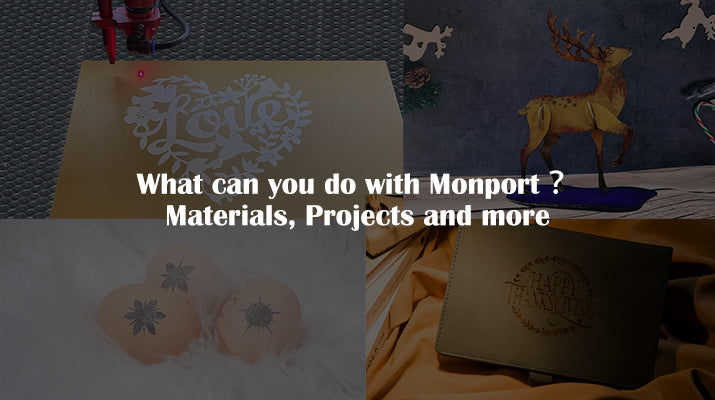
What can you do with Monport? Materials, projects and more.
Have fun and be a part of our facebook comunity, post your laser engraving machine project, ask for advice and enjoy it. We all start from now on, the best way to enter the laser world is to sneak into it! join and create with Monport to build a happier life!