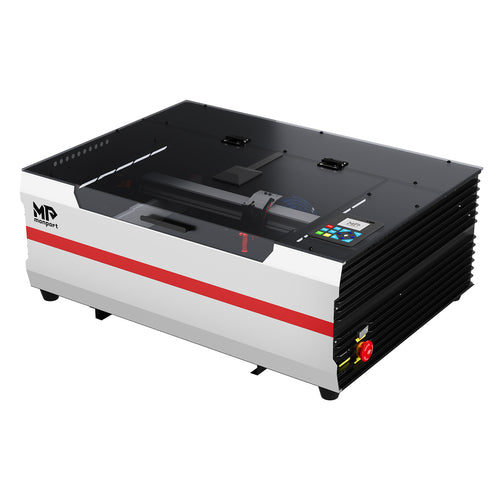
If you are looking for the best laser engraver under $2,000, begin with the work you need it to do. The right machine for wood signs and acrylic cutting is not the right machine for bare-metal marking, even if both products use the word “laser engraver.”
Short answer: an enclosed CO2 laser is usually the first category to compare when your projects involve wood, plywood, acrylic, leather, paper, or glass engraving. A diode laser can make sense for lower-cost surface engraving and smaller projects. If your main job is direct marking or engraving on bare metal, compare fiber lasers instead.
This guide is written as a Monport-oriented buying guide, not as an independent laboratory ranking. The product examples show how to compare work area, power, software, features, and budget. Specifications, prices, availability, and package contents can change, so verify the exact variant on the product page before ordering.
Quick Answer: Which Laser Type Is Best Under $2,000?
| Primary job | Category to compare first | Why it fits | Limitation to plan for |
|---|---|---|---|
| Cut and engrave wood, plywood, acrylic, leather, paper, or similar non-metals | Enclosed CO2 laser | It is designed for a broad range of non-metal engraving and cutting workflows. | Cooling, air assist, exhaust, fire control, and material verification remain part of the setup. |
| Start with compact surface engraving at a lower entry cost | Diode laser | It can be a practical starting point for compatible materials and smaller projects. | Cutting depth, transparent materials, enclosure requirements, and production capacity vary widely. |
| Mark or engrave bare stainless steel, aluminum, tools, tags, or parts | Fiber laser | Its source and workflow are intended for metal marking and engraving. | It is not a general replacement for a CO2 machine used to cut wood or acrylic. |
| Make larger signs, décor, or batches of smaller products | Larger-bed CO2 laser | More usable bed area can reduce repositioning and improve sheet layout. | A larger machine needs more floor space, ventilation planning, shipping budget, and workspace clearance. |
For non-metal work, browse the Monport CO2 laser collection. For direct metal work, compare the split fiber and integrated fiber categories separately. These categories are not interchangeable simply because they are all marketed as laser engravers.
Start With the Job, Not the Wattage

List the materials you will actually use
Write down the three materials you expect to process most often. “Wood, acrylic, and leather” leads to a different purchase from “anodized aluminum tags and stainless-steel tools.” A machine that can mark one material occasionally is not necessarily a good production choice for that material.
Separate cutting from engraving
Engraving changes or removes the surface. Cutting requires the beam to pass through the material. Cutting performance depends on more than the headline wattage: material composition, thickness, focus, air assist, speed, power settings, number of passes, and edge-quality requirements all matter.
Ask for a test performed on the same material and thickness you plan to buy. A marketing image or a maximum engraving-speed claim cannot tell you whether a machine will cut your material cleanly in a repeatable workflow.
Decide what “under $2,000” means
A $2,000 machine budget is not the same as a $2,000 ready-to-run budget. Before comparing models, decide whether the limit includes shipping, tax, exhaust, cooling, air assist, software, a rotary attachment, starter materials, and replacement parts.
If the limit is all-in, a smaller machine with the required safety equipment may be a better purchase than a larger machine that leaves no room for installation. If the limit applies only to the machine, you can compare more features, but you should still calculate the complete setup before placing an order.
Laser Engraver Material Compatibility Matrix
Use the matrix below to narrow the technology category. It is a screening tool, not a substitute for the manufacturer’s material list, a safety data sheet, or a controlled material test.
| Material or task | Engraving | Cutting | First category to investigate | What to verify |
|---|---|---|---|---|
| Solid wood and plywood | Common application | Often possible, depending on species, glue, thickness, and edge requirements | CO2; diode for selected lighter-duty work | Material thickness, adhesive composition, air assist, and expected edge quality |
| Clear or colored acrylic | Common application | CO2 is usually the first category to investigate | CO2 | Whether the sheet is cast or extruded, thickness, color, and the supplier’s laser suitability |
| Leather | Often possible | Possible for selected products | CO2 or diode, depending on the workflow | Tanning method, coatings, adhesives, smoke, and odor; test a small sample first |
| Glass | Surface engraving can be possible | Not the usual cutting application | CO2 | Glass type, breakage risk, masking or wetting method, and test settings |
| Paper and cardboard | Possible | Possible, but fire risk requires close supervision | CO2 or diode for compatible work | Material density, airflow, focus, and a safe unattended-operation policy |
| Anodized or coated metal | May be possible as surface marking | Not the same as cutting bare metal | Depends on the coating and process; verify CO2, diode, or fiber compatibility | Whether the result removes a coating, uses marking spray, or changes the base metal |
| Bare stainless steel, aluminum, or tools | Fiber is the usual starting category | Not a general sheet-cutting use case for a small marking system | Fiber | Metal type, marking depth, field size, lens, and the required production speed |
| PVC, vinyl, or unidentified plastic | Do not assume it is suitable | Do not assume it is suitable | Pause and verify the composition first | Material specification or SDS, additives, coatings, and the machine maker’s prohibited-material guidance |
CO2 laser engraver vs. Diode laser engraver vs. Fiber laser engraver: What Changes at This Budget?
The source type affects which materials absorb the beam efficiently and which processes are practical. That is why a fiber marker that is excellent for metal identification is not automatically a good choice for cutting acrylic, and why a CO2 cutter for wood is not automatically a bare-metal engraver.

| Laser type | Best fit | Advantages to compare | Trade-offs |
|---|---|---|---|
| CO2 laser engraver | Non-metal engraving and cutting | Broad material range, enclosed desktop options, and a natural fit for wood, acrylic, leather, paper, and glass engraving | Requires a serious plan for cooling, exhaust, air assist, enclosure safety, and maintenance |
| Diode laser engraver | Lower-cost surface engraving and small projects | Accessible entry point and useful results on compatible surfaces | Can be limited for thick cutting, clear materials, speed-sensitive production, and some safety setups |
| Fiber laser engraver | Bare-metal marking and engraving | Purpose-built workflow for metal parts, tools, tags, and identification work | Usually the wrong first purchase when the main products are wood signs, acrylic décor, or sheet goods |
Do not treat “metal compatible” as a complete specification. It may describe anodized aluminum, painted metal, marking spray, or a particular alloy rather than direct engraving on every bare-metal surface.
Monport Examples Under or Near the $2,000 Machine Budget
The examples below are organized by use case rather than presented as independently tested rankings. Prices and specifications reflect the product configurations represented in the supplied source draft and should be checked again before publication or purchase.

| Example | Listed budget position | Work area and power | Useful fit | Important check |
|---|---|---|---|---|
| Monport 40W Pro LightBurn-supported CO2 | Lower-budget example; shown out of stock when the source draft was checked | 8 × 12 in.; 40W | Small projects, prototypes, ornaments, and buyers who can work within a compact bed | Confirm restock status, cooling, manual-focus workflow, rotary support, and the exact software package |
| Monport Reno 45 Basic | Listed at $1,149.99 for the Basic variant in the source draft | 16 × 12 in.; 45W | A balanced desktop CO2 path for makers and small businesses that need more room than a compact K40-style bed | Check the selected variant, package contents, software license, shipping estimate, and current price |
| Monport Reno 45 Vision | Listed at $1,649.99 for the Vision variant in the source draft | 16 × 12 in.; 45W | Users who value a camera-oriented positioning workflow while keeping the machine price below $2,000 | The Reno 45 product page is shared with other variants, so verify the camera, software, accessories, and delivery date for the selected option |
| Monport Reno 65 Basic | Listed at $1,599.99 for the Basic variant in the source draft | 24 × 16 in.; 65W | Larger signs, décor, and batch layouts where usable bed area matters more than compact footprint | Confirm the Basic configuration, floor space, cooling, air assist, exhaust route, and delivery terms |
| Monport 60W 24 × 16 in. CO2 | Listed above $2,000 as a new-machine comparison point in the source draft | 24 × 16 in.; 60W | Buyers whose budget can move higher or who are evaluating a verified pre-owned or promotional option | Do not count it as a strict under-$2,000 new-machine choice without confirming the current price and available configuration |
Reno 45 vs. Reno 65: Which direction makes more sense?

| Choose the Reno 45 direction when... | Choose the Reno 65 direction when... |
|---|---|
| Your normal products fit within a 16 × 12 in. working area. | You regularly make larger panels, signs, décor, or multi-piece layouts. |
| You want a smaller footprint and more room in the budget for exhaust, materials, or a rotary. | Reducing repositioning and increasing sheet layout matters to your workflow. |
| A camera-oriented Vision workflow is useful for your products. | Bed area and cutting headroom are more important than camera features. |
| You are still validating demand and do not need a larger production bed yet. | You already know your product range will outgrow a smaller bed. |
The wider Reno Series range is useful for comparing variants, but compare the selected configuration rather than relying on the family name. Basic, Vision, and Pro options can differ in camera equipment, controls, accessories, and price.
What to Compare Before You Buy?

1. Usable work area, not just the outside dimensions
Measure your largest normal workpiece and add room for alignment and material handling. An 8 × 12 in. bed may work for ornaments and small gifts. A 16 × 12 in. bed provides more flexibility for desktop products. A 24 × 16 in. bed can make larger signs and batch layouts easier, but it also takes more space.
For a small business, ask how many finished pieces fit in one layout and how much time is spent loading, repositioning, and unloading. Bed size matters because it changes the workflow, not because a larger number automatically means better results.
2. Power claims and test conditions
Power can provide more cutting headroom, but it is not a complete production metric. Compare power only with the same type of source and the same measurement convention. Some product pages describe tube power, optical output, or a model-family rating differently.
For any material you need to cut, ask for the following test details:
- Exact material, brand, thickness, and batch if relevant
- Speed, power, passes, focus, and lens information
- Air-assist settings and whether the test cut completely through
- Edge quality, charring, kerf, warping, and cleanup required
- Whether the result is a single sample or a repeatable production setting
3. Cooling, air assist, exhaust, and enclosure
For a CO2 laser, determine what is built in and what you must add. Cooling protects the laser source; air assist helps manage the cut zone; exhaust removes smoke and fumes; the enclosure and interlocks help control beam exposure and access. These functions solve different problems and should not be treated as one generic “included accessories” line.
Also measure the installation location. Check the stable working surface, electrical requirements, exhaust path, clearance for doors and maintenance, and whether local fire or ventilation rules apply. The CO2 accessories collection can help identify items that may be missing from a machine-only price, but the product manual should determine what is required.
4. Software and controller compatibility
“LightBurn-compatible” and “LightBurn included” are different statements. Confirm the controller, supported operating system, connection method, required license type, and package contents for the exact model and variant.
The LightBurn User Guide covers device setup, material testing, camera tools, rotary workflows, and troubleshooting. Use it to understand the workflow you are buying into rather than assuming that every LightBurn feature works with every controller.
5. Camera, autofocus, rotary, and pass-through features
- Camera: useful for visual positioning, layout, and some batch workflows.
- Autofocus: reduces manual setup when material thickness changes.
- Rotary attachment: relevant for tumblers, bottles, glasses, flasks, and other cylindrical products.
- Pass-through: useful when the material is longer than the standard work area and the machine is designed for that workflow.
Buy the feature that removes a real bottleneck. A camera is not automatically valuable if every job is a flat sheet that can be aligned with a simple jig. A rotary is not a priority if you sell only plaques and signs.
6. Warranty, documentation, and replacement parts
A laser engraver is a machine that requires setup and maintenance, not just a desktop printer. Before purchase, look for a clear warranty, support contact, user manual, troubleshooting instructions, replacement lenses or mirrors, tube or source information, and a process for handling shipping damage.
Review the Monport warranty policy and the download center with the product page. Documentation access is part of the value of a first laser because it can affect installation time and the cost of solving a problem.
Build a Realistic $2,000 Setup Budget
Use this worksheet before choosing between the final two or three machines:
| Budget item | Question to ask | Why it changes the decision |
|---|---|---|
| Machine and variant | Is the displayed price for the exact configuration I need? | Camera, autofocus, bed size, and controls may vary by variant. |
| Software | Is a license included, or is the machine only compatible? | A compatible controller does not always include the software license. |
| Exhaust or filtration | What removes smoke from the enclosure, and where does it go? | A safe, workable installation may require more than a short duct. |
| Cooling and air assist | Are they built in, included, or separate purchases? | Missing equipment can delay the first safe job. |
| Rotary | Will cylindrical products be a core part of the business? | It is useful for the right product range and unnecessary for flat work. |
| Shipping, tax, and delivery | Are these included in the advertised price? | The checkout total can move a machine outside the intended budget. |
| Materials and test pieces | How much material will be used to develop repeatable settings? | Testing is part of the cost of a reliable workflow. |
| Maintenance reserve | What parts or consumables may need replacement? | Up-front price is not the same as long-term ownership cost. |
If $2,000 is all-in: prioritize a complete, supportable setup and keep money for exhaust, materials, installation, and testing.
If $2,000 is machine-only: compare bed size and workflow features, but calculate the complete setup before treating the machine as affordable.
If you are buying for a small business: evaluate repeatability, material loading, documentation, availability, and replacement parts—not only the lowest sticker price.
Laser Engraving Safety and Material Limits
Laser equipment can create eye, skin, fire, smoke, and electrical hazards. The FDA’s laser product guidance explains that hazard class, beam exposure, engineering controls, and risk communication all matter. Use the manufacturer’s manual and follow applicable local electrical, ventilation, and fire requirements; this article is not a substitute for a site-specific safety assessment.

Minimum checks before the first job
- Confirm that the enclosure, viewing window, interlocks, emergency stop, and warning labels are present and working as specified.
- Plan the exhaust or filtration route before placing the machine.
- Keep the machine attended during active work and have a clear response plan for a flare-up or fire.
- Test new materials on small samples rather than starting with a production sheet.
- Verify material composition, coatings, adhesives, and additives using the supplier’s specification or SDS.
- Do not process PVC, vinyl, or an unidentified plastic merely because it looks similar to a known material.
Marking is not the same as cutting
A machine may mark a coated metal surface without being suitable for deep engraving bare metal. It may engrave a sheet without cutting it cleanly at the thickness you need. Ask for a sample under matching conditions and treat an unverified material claim as a question to investigate, not as a production guarantee.
A Step-by-Step Buying Process
- Write down your primary materials. Focus on the products you expect to sell or make repeatedly.
- Separate cutting from engraving. Decide whether the workflow is mainly personalization, sheet cutting, metal marking, or a combination.
- Measure the largest normal workpiece. Compare it with the usable bed area, not the outside dimensions.
- Choose the laser category. Eliminate machines that cannot perform the main job before comparing cameras or speed claims.
- Request comparable test information. Match material, thickness, settings, passes, air assist, and finish expectations.
- Calculate the complete setup cost. Add software, exhaust, cooling, rotary, shipping, tax, materials, and maintenance reserve.
- Verify the exact variant. Check the model selector, included accessories, controller, software, warranty, and delivery estimate.
- Read the documentation before ordering. Make sure you understand installation, safety, maintenance, and support routes.
If you need a brand-specific starting point, the Monport machine quiz can help narrow the product family. Treat it as an additional input, not as a replacement for your material, workspace, and budget analysis.
Common Buying Mistakes
- Choosing by wattage alone: power does not tell you the usable bed area, controller, cooling, exhaust, software, or total cost.
- Confusing a product family with a configuration: Basic, Vision, and Pro variants may not include the same features.
- Treating maximum speed as production speed: material preparation, loading, design complexity, and edge quality affect real throughput.
- Assuming every “metal” claim means bare-metal engraving: determine whether the process requires a coating or marking spray.
- Assuming LightBurn is included: compatibility and license inclusion are separate questions.
- Spending the entire budget on the machine: safe installation and testing may still require additional equipment and materials.
- Buying a camera or rotary without a use case: a feature is valuable only when it solves a recurring workflow problem.
- Skipping material tests: thickness, glue, moisture, coatings, and batch differences can change the result.
-

Frequently Asked Questions
What is the best laser engraver under $2,000?
There is no single best machine for every material. For wood, acrylic, leather, paper, glass engraving, and non-metal cutting, start with an enclosed CO2 laser and choose the work area that matches your products. For lower-cost surface engraving, compare compatible diode machines. For direct bare-metal marking, compare fiber lasers.
Which Monport model is the best fit for a small business?
Use the work area and workflow to decide. A Reno 45 direction can suit products that fit within a 16 × 12 in. bed and buyers who value a smaller footprint. A Reno 65 direction is more suitable when larger signs, décor, or batch layouts are central to the business. These are use-case recommendations based on listed configurations, not independent performance rankings.
Can a laser engraver under $2,000 engrave metal?
Sometimes, but the process matters. A CO2 or diode machine may mark a compatible coating or anodized surface. Direct marking or engraving on bare metal generally points to a fiber laser. Confirm the exact alloy, desired depth, and test method before buying.
What can a 45W or 65W CO2 laser cut?
That depends on the material, thickness, focus, lens, air assist, speed, power setting, passes, and the edge quality you accept. Do not convert a wattage label into a universal thickness promise. Ask for a test result that matches your material and production requirements.
Is LightBurn included with the machine?
Not necessarily. A machine can be LightBurn-compatible or LightBurn-ready while the license is sold separately or included only in a particular bundle. Check the exact variant and package contents.
How much work area do I need?
Measure your largest normal product and leave room for alignment. An 8 × 12 in. bed can fit small products, a 16 × 12 in. bed offers more desktop flexibility, and a 24 × 16 in. bed gives more room for signs and batch layouts. Choose based on actual products rather than a general preference for the largest machine.
Do I need a rotary attachment?
You need one when cylindrical products such as tumblers, bottles, glasses, or flasks are a core part of the workflow. If you mainly make flat signs, ornaments, plaques, or sheet goods, a rotary can be a later purchase.
Is $2,000 enough for a complete setup?
It can be, depending on the machine and what is included, but do not assume that a machine listed below $2,000 is ready to operate without additional spending. Add exhaust, software, cooling, air assist, rotary equipment, shipping, tax, materials, and a maintenance reserve before making the final decision.
Final Recommendation
The best laser engraver under $2,000 is the one that can perform your main job safely and repeatably within your real workspace and total budget.

- Choose CO2 for a broad non-metal workflow involving wood, acrylic, leather, paper, glass engraving, or cutting.
- Choose diode when the priority is lower-cost surface engraving on compatible materials and smaller projects.
- Choose fiber when direct marking or engraving on bare metal is the primary business need.
- Choose the work area based on your actual products before paying for extra automation.
- Keep part of the budget for exhaust, software, testing, installation, and maintenance.
Once you know your material, work area, and budget model, compare the relevant machine category, confirm the exact product variant, and review support documentation before ordering. A careful match at the start is usually more valuable than a higher wattage number that does not fit the workflow.