Choosing your first laser engraving software can be surprisingly confusing. LightBurn offers extensive design and machine-control features, LaserGRBL is free, and programs like xTool Studio, RDWorks, and EZCAD are designed around particular machines or controllers. So which one should a beginner actually use?
LightBurn is one of the best all-around options for beginners with compatible laser engravers. It combines design editing, job preparation, and laser control in one application. However, beginners working with basic GRBL machines may find LaserGRBL sufficient, while manufacturer-specific software can offer a simpler starting point.
The right decision comes down to three things: your laser engraver's controller, the projects you want to create, and how much flexibility you need.
This guide compares LightBurn vs other laser engraving software through real-world workflow considerations, pricing, compatibility, and ease of learning. It also explains how different software options work with Monport laser engraving machines.
LightBurn vs Other Laser Engraving Software: Quick Comparison

Before comparing features, it's important to understand that these programs aren't all designed for the same equipment.
LightBurn supports multiple controller families, depending on the license. LaserGRBL focuses on compatible GRBL machines, while RDWorks and EZCAD serve particular industrial laser-controller ecosystems. xTool Studio and Monport M-Design Hub focus on their manufacturers' supported equipment.
| Software | Price | Beginner Learning Curve | Design Tools | Compatible Lasers | Operating Systems | Best For |
|---|---|---|---|---|---|---|
| LightBurn | Core $99 / Pro $199; 30-day trial | Moderate | Extensive vector and layout tools | Supported GCode, DSP, and Galvo controllers | Windows 10+; macOS 11+ | Beginners wanting flexibility and room to grow |
| LaserGRBL | Free | Easy for simple jobs | Basic image processing; limited vector editing | Compatible GRBL machines | Windows | Budget-conscious GRBL users |
| xTool Studio | Free software | Generally easy on supported devices | Integrated design and device tools | Supported xTool devices | Windows, macOS; mobile support varies | xTool beginners |
| RDWorks | Generally supplied with equipment | Moderate | Basic drawing and job tools | Compatible Ruida DSP controllers | Primarily Windows | Ruida-based CO₂ lasers |
| EZCAD | Generally supplied with equipment | Moderate to advanced | Marking-focused tools | Matching Galvo controllers | Primarily Windows | Fiber laser marking |
| Monport M-Design Hub | Free software for supported machines | Beginner-oriented | Integrated design and smart workflow tools | Supported Monport MEGA/MEGAS models | Windows; selected macOS versions | Monport MEGAS users |
Pricing and software support are based on published information available in October 2026. Device compatibility, supported features, and operating-system requirements may change.
Quick Recommendations
- Best overall for supported machines: LightBurn
- Best free option for GRBL users: LaserGRBL
- Best integrated option for xTool machines: xTool Studio
- Best included option for compatible Ruida CO₂ lasers: RDWorks
- Best for supported Galvo fiber systems: EZCAD
- Best for Monport MEGAS smart workflows: M-Design Hub
The most important distinction is that software compatibility depends on the machine's controller, not simply whether the laser is described as CO₂, diode, fiber, or MOPA.
What Is LightBurn and Why Is It Popular Among Beginners?
LightBurn is laser engraving software that combines artwork preparation, design editing, and control of compatible laser machines.
Instead of creating a design in one application and managing the engraving job in another, users can handle much of the workflow in one interface.
What Can You Do with LightBurn?
LightBurn includes tools for creating basic vector designs, editing text and shapes, and importing common image and vector formats such as SVG, DXF, and PNG.
It also provides layer-based job organization. Different elements can be assigned separate engraving or cutting operations, making it easier to organize projects that combine text, graphics, and outlines.
Other useful features include job previews, layout controls, material-testing tools, and support for compatible rotary attachments and camera systems.
These features become especially valuable when a workshop starts producing personalized gifts, signage, or recurring customer orders.
Is LightBurn Easy to Learn?
LightBurn is approachable, but it isn't completely automatic.
A beginner can usually understand basic artwork placement and layer organization before learning every advanced feature. The interface becomes more familiar as users work with additional design types.
However, the initial learning process involves understanding machine compatibility, coordinate systems, material requirements, and the difference between engraving and cutting operations.
For someone planning to use laser engraving regularly, that learning time can be worthwhile.
What Are the Limitations of LightBurn?
The most obvious drawback is cost. Unlike LaserGRBL, LightBurn requires a paid license after its trial period.
Compatibility is another limitation. Not every laser engraver supports LightBurn, and machines using proprietary software may depend on manufacturer-specific features.
Advanced settings and production tools can also feel overwhelming to someone who only needs occasional basic engraving.
LightBurn is most valuable when its additional flexibility solves a real workflow problem, rather than simply because it offers more features.
LightBurn vs LaserGRBL: Which Is Better for Beginners?

For beginners comparing paid and free software, LightBurn vs LaserGRBL is often the first decision.
Both can work with compatible GRBL machines, but they approach laser engraving differently.
Ease of Use and Interface
LaserGRBL uses a relatively focused interface centered on machine control and image engraving. For simple projects, this can feel less complicated than learning a larger design environment.
LightBurn offers more tools within the same workspace. Beginners may need additional time to understand its panels and layer controls, but those tools can reduce the need to switch between applications.
Design and Engraving Features
LaserGRBL supports image preparation, grayscale conversion, dithering, vectorization, and job previews.
However, its native SVG workflow has limitations. Complex vector editing, text handling, and separate operations for different colors or layers are better managed with dedicated design tools or more capable software.
LightBurn provides stronger integrated vector editing, multi-layer job organization, and layout management.
This makes it especially useful for projects combining multiple design elements or recurring personalized products.
Price and Compatibility
LaserGRBL is free and open-source, with native support focused on Windows and compatible GRBL firmware.
LightBurn Core costs $99 and supports appropriate GCode-based controllers. It also runs on supported Windows and macOS systems.
Neither program should be assumed compatible with a machine until its controller has been checked.
LightBurn or LaserGRBL: Which Should You Choose?
Choose LaserGRBL if you have a compatible Windows-based GRBL engraver, mainly work with simple designs, and want to avoid software costs.
Choose LightBurn if you regularly create customized products, need multiple engraving layers, or want more control over artwork preparation and layout.
For many beginners, LaserGRBL is a reasonable starting point. LightBurn becomes more attractive as design complexity and production needs increase.
LightBurn vs xTool Studio: Which Is Easier to Use?
The comparison between LightBurn and xTool Studio is different because xTool Studio is developed specifically for xTool's supported machines.

Beginner-Friendly Interface and Workflow
xTool Studio combines design editing, device management, and manufacturer-specific functions.
For supported equipment, it can simplify initial setup and provide access to features such as material presets, camera-assisted positioning, and integrated workflows.
LightBurn offers a broader controller-oriented environment, but users must confirm whether their particular machine and its special features are supported.
Design Flexibility and Advanced Features
LightBurn is attractive to users who want flexible vector editing, reusable projects, and consistent workflows across multiple supported machines.
xTool Studio is particularly useful when a device has proprietary capabilities that are closely integrated with the manufacturer's software.
For example, device-specific positioning tools or automated features may work differently from their equivalents in third-party applications.
Neither program is automatically better in every situation.
Machine Compatibility and Limitations
Not every xTool engraver supports LightBurn.
For example, xTool officially states that the F2 does not support LightBurn and is intended to use xTool Studio.
Other models have different requirements, so buyers should check the current official compatibility documentation instead of assuming that support extends across the entire brand.
Recommendation: For a newer xTool machine, start with its officially supported software. Consider LightBurn only when the exact model and required features are confirmed compatible.
LightBurn vs RDWorks: Which Is Better for CO₂ Laser Engraving?
RDWorks is commonly associated with CO₂ laser machines using compatible Ruida controllers.
For workshops choosing between LightBurn vs RDWorks, the decision is usually about convenience, design flexibility, and production workflow.

RDWorks Features and Compatible Controllers
RDWorks provides laser job preparation, basic editing, and control functions for compatible Ruida-based equipment.
Because it is often supplied with a machine, users can begin with the manufacturer's established software without purchasing a separate license.
However, the interface and editing workflow may feel less convenient for users accustomed to modern graphics applications.
LightBurn's Advantages for CO₂ Laser Projects
LightBurn offers integrated design editing, layer-based operation management, layout tools, and previews.
These features are useful when a project combines engraved text, raster graphics, and cut outlines.
For example, a small signage business producing personalized wooden plaques may find it easier to prepare different customer names within a reusable LightBurn project.
RDWorks remains a valid option when the supplied software already meets production needs.
Is LightBurn Worth Upgrading to from RDWorks?
The upgrade is easier to justify when users frequently prepare complex designs, handle multiple operations, or want a more streamlined editing workflow.
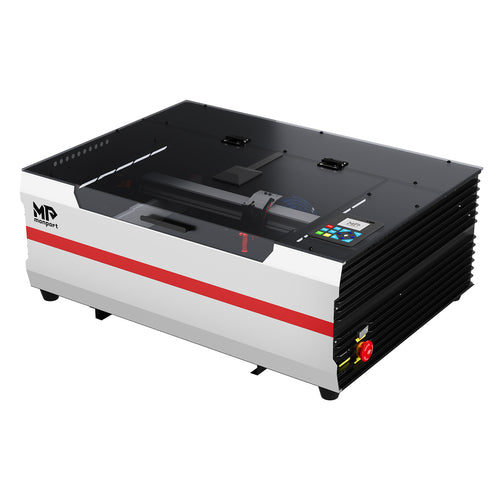
A practical example is the Monport 60W CO₂ Laser Engraver & Cutter, which officially supports both LightBurn and RDWorks.
Its 24 × 16-inch working area and autofocus feature make it relevant to workshops producing signs, decorative products, and customized gifts.
Because the machine supports both software options, buyers can compare workflows rather than choosing hardware solely around one application.
Explore the Monport 60W CO₂ Laser Engraver →
LightBurn vs EZCAD: Which Is Better for Fiber Laser Engraving?
Fiber laser users face a different software decision.
Many Galvo-based marking systems use EZCAD or another controller-specific program, while supported machines can also work with LightBurn Pro.

What Is EZCAD Used For?
EZCAD is widely used with compatible Galvo laser-marking controllers.
Its applications include metal marking, logos, serial numbers, QR codes, and industrial identification.
The software may also provide functions for variable text, repeated marking jobs, and specialized machine settings, depending on the installed version and controller.
Because it is often supplied with the laser, EZCAD is a practical starting point for many fiber laser owners.
LightBurn Pro for Compatible Galvo Lasers
LightBurn Pro supports selected DSP and Galvo controllers, including specified EZCAD2, EZCAD3, and BSL-based systems.
Its integrated design tools may be more convenient for users who already work with LightBurn on other compatible machines.
However, Galvo devices require appropriate configuration and calibration information. Manufacturer-supplied device files should be preserved, and compatibility must be checked before changing software or drivers.
Which Software Is Better for MOPA Fiber Lasers?
MOPA fiber lasers can provide additional control over pulse characteristics, including frequency and pulse width.
These capabilities are useful in specialized metal marking applications, but their availability depends on the laser source, controller, and software integration.
LightBurn Pro supports relevant controls on certain compatible Galvo MOPA systems. EZCAD may remain preferable when it is the manufacturer's designated application or supports functions not available through the alternative setup.
For example, metal color marking requires more than selecting a color in the design software. Results depend on the material and a qualified, machine-specific process.
The conclusion is straightforward: a machine being labeled "fiber" or "MOPA" does not automatically make it LightBurn-compatible.
Beginner Workflow Comparison: Creating Your First Laser Engraving Project
Software specifications are useful, but beginners often care more about what happens between opening a design file and preparing a finished job.
The following comparison uses a simple example: a small wooden nameplate with a short word and rectangular border.
This is an illustrative software-workflow comparison based on documented features, not a claim that all six programs were physically tested on identical machines.
The actual laser operation should follow the manufacturer's instructions and be performed by a trained operator using appropriate enclosure, extraction, and safety controls.
Step 1 – Import a Simple SVG Design
In LightBurn, users can import SVG artwork and adjust text, dimensions, and layout using built-in design tools.
LaserGRBL can handle compatible SVG files, but editing capabilities are more limited. Complex artwork may need to be prepared in another program, such as Inkscape.
xTool Studio offers integrated artwork editing for supported machines.
RDWorks can import suitable artwork for Ruida-based workflows, while EZCAD provides an environment focused on marking applications.
M-Design Hub offers design preparation within the supported Monport workflow.
Step 2 – Review Engraving Settings
LightBurn organizes different operations through layers, which can help users distinguish between engraving and cutting elements.
LaserGRBL provides controls for compatible GRBL jobs but has a less extensive multi-layer design environment.
Manufacturer software may offer material libraries or device-specific presets.
Regardless of the application, actual processing parameters must be appropriate for the material, equipment, and approved operating procedure. Software presets should not be treated as universal guarantees.
Step 3 – Preview and Position the Design
LightBurn provides job previews and supports positioning features on compatible equipment.
LaserGRBL offers job visualization for GRBL workflows.
xTool Studio and M-Design Hub may provide more integrated camera positioning on supported machines.
For repeat personalization work, seeing the relationship between the artwork and the actual workpiece can reduce layout uncertainty.
Step 4 – Review the Final Output
After a properly supervised machine trial, evaluate the final engraving against the original design.
Useful observations include text readability, placement, line consistency, and whether the intended detail has been reproduced.
When comparing software, record the number of applications required, whether artwork edits were convenient, and whether the workflow was easy to repeat.
Which Software Offers the Smoothest Beginner Experience?
| Beginner Task | Software With a Practical Advantage |
|---|---|
| Basic GRBL image engraving without software cost | LaserGRBL |
| Integrated vector editing and layer management | LightBurn |
| Manufacturer-specific xTool workflows | xTool Studio |
| Included Ruida CO₂ workflow | RDWorks |
| Controller-specific fiber marking | EZCAD |
| MEGAS camera-assisted batch workflows | M-Design Hub |
The smoothest experience depends on the actual machine and project. It cannot be determined by interface appearance alone.
Which Laser Engraving Software Works Best with Monport Machines?
Monport offers different laser technologies for different applications, so there is no single software recommendation for every machine.
Choosing the appropriate program begins with the equipment model and supported controller.

Monport 60W CO₂ Laser: LightBurn vs RDWorks
The Monport 60W CO₂ laser officially supports both LightBurn and RDWorks.
RDWorks is a practical option for users who prefer to begin with the software supplied for a compatible Ruida-based system.
LightBurn may be more attractive for users who want integrated artwork editing, layer management, and a consistent design-to-production workflow.
This flexibility is useful for businesses making wooden signs, acrylic products, personalized decorations, and other compatible nonmetal items.
View the Monport 60W CO₂ Laser Engraver →
Monport MEGAS 70W: LightBurn vs M-Design Hub
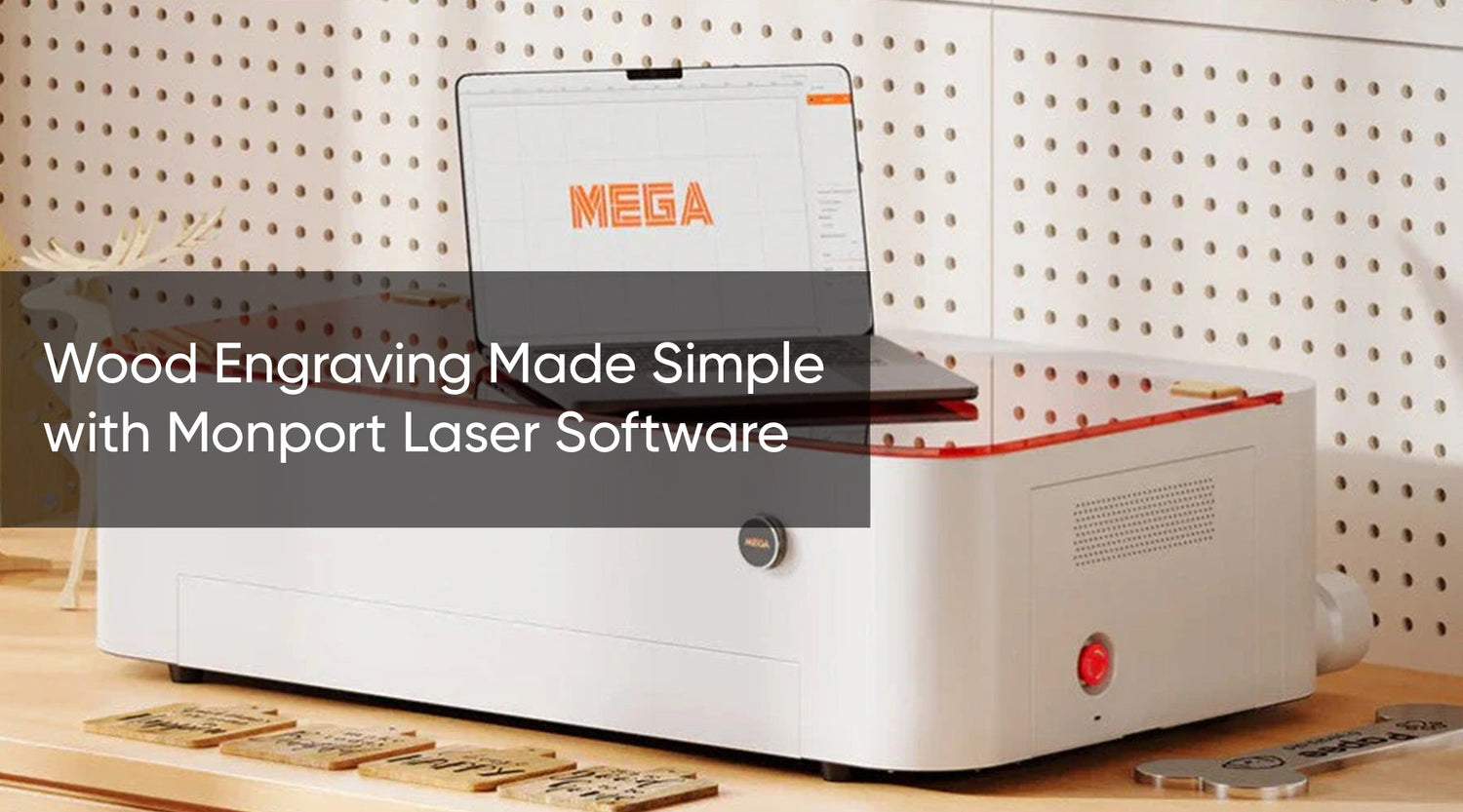
The Monport MEGAS 70W CO₂ Laser Engraver offers two relevant software workflows: LightBurn and Monport's M-Design Hub.
MEGAS includes a built-in 8MP camera, autofocus, and a 700 × 350 mm working area.
M-Design Hub is developed around Monport's supported machines and provides features such as camera-assisted positioning, smart batch filling, and design organization.
These capabilities can be particularly convenient for beginners producing repeated personalized items.
For example, a workshop handling multiple wooden tags or small gifts may benefit from a workflow that recognizes and organizes multiple objects.
LightBurn provides another option for users who prefer its design tools, material libraries, and familiar layout environment. Monport also documents LightBurn integration for features such as camera positioning and autofocus on supported MEGAS configurations.
However, feature availability can depend on the installed software, firmware, and machine configuration. Buyers should verify the current supported setup before assuming identical functionality in both programs.
Which should beginners choose?
Start with M-Design Hub if you want to explore MEGAS-specific camera and smart batch features through Monport's integrated workflow.
Consider LightBurn if you already use it, prefer its editing tools, or want to maintain a consistent workflow across other supported laser systems.
You can explore the software on the official Monport M-Design Hub page.
Discover the Monport MEGAS 70W →
Monport Fiber and MOPA Laser Engravers: LightBurn vs EZCAD
For Monport fiber and MOPA machines, software selection depends on the specific Galvo controller and model configuration.
EZCAD is commonly used for supported fiber laser marking systems. LightBurn Pro can provide an alternative when the controller, driver, and machine configuration are compatible.
MOPA users should also verify support for the required pulse-control functions and any manufacturer-specific marking features.
Monport's Fiber Laser Engraver collection includes models designed for metal marking and engraving applications.
Before purchasing, confirm which software is supplied and whether your preferred alternative is officially supported.
Explore Monport Fiber Laser Engravers →
How Much Does LightBurn Cost? Is It Worth Paying for?
One of the most common beginner questions is simple: Is LightBurn worth it?
That depends on whether its additional tools will improve your workflow enough to justify the license.

LightBurn Core vs LightBurn Pro
As of October 2026, LightBurn officially lists two main license options.
| License | Price | Main Compatibility | Best For |
|---|---|---|---|
| LightBurn Core | $99 | Supported GCode-based controllers | Compatible entry-level lasers |
| LightBurn Pro | $199 | Core features plus supported DSP and Galvo controllers | Ruida CO₂ and compatible Galvo users |
Both are one-time purchases that include one year of software updates.
After that update period, users can continue using software versions covered by their licenses. Access to newer releases may require purchasing another update period.
LightBurn also provides a 30-day trial, allowing users to evaluate compatible features before buying.
Free Software vs Paid Software
Free software can be sufficient for occasional projects, especially when supplied by the machine manufacturer.
Paid software becomes more appealing when design preparation takes too much time or users regularly manage complex layouts.
The value is not simply the number of available features. It is whether those features make everyday work more convenient.
When Should Beginners Upgrade to LightBurn?
For occasional hobby engraving on a compatible GRBL machine, LaserGRBL may be enough.
For frequent personalized gifts, LightBurn's design and layer tools may reduce repetitive editing work.
For a small business producing multiple customer orders, reusable layouts and consistent job preparation may justify the investment.
Before purchasing, use the official LightBurn trial and verify the required license for your specific controller.
How to Choose the Best Laser Engraving Software for Your Needs
The best laser engraving software for beginners is not necessarily the program with the most features.
Start with the equipment you own, then consider the applications and workflow you actually need.

Check Your Laser Controller First
GRBL, DSP, and Galvo controllers have different software requirements.
A compatible GRBL engraver may support LaserGRBL or LightBurn Core. A Ruida-based CO₂ machine may work with RDWorks or LightBurn Pro.
A Galvo fiber system may require EZCAD or another designated application.
Always check the exact controller model before purchasing software.
Consider Your Computer's Operating System
LightBurn 2.0 and later officially support Windows 10 or newer and macOS 11 or newer. Linux is no longer supported in current 2.x releases.
LaserGRBL is designed for Windows.
xTool Studio supports Windows and macOS on compatible configurations, while EZCAD and RDWorks are primarily associated with Windows workflows.
Monport M-Design Hub has Windows support, with macOS compatibility dependent on the specific version.
Evaluate Your Engraving Projects
Basic text engraving needs different software capabilities from multi-layer signs or industrial marking.
Personalized gifts may benefit from convenient editing tools. Batch production may call for object positioning and repeated-job features.
For metal marking, controller compatibility and reliable access to machine-specific settings become more important.
Compare Your Budget and Future Needs
| Your Situation | Recommended Starting Point |
|---|---|
| Compatible GRBL machine and no software budget | LaserGRBL |
| Compatible machine with varied creative projects | LightBurn |
| Supported xTool equipment | xTool Studio |
| Ruida CO₂ machine with included software | RDWorks |
| Galvo fiber system with supplied marking software | EZCAD |
| Monport MEGAS with camera-assisted workflows | M-Design Hub |
The practical rule is to choose a supported program that handles your regular projects comfortably, rather than paying for capabilities you may never need.
Common Problems Beginners Face with Laser Engraving Software
Many software problems come from compatibility, artwork preparation, or machine configuration rather than a defect in the application itself.
| Problem | Possible Cause | Recommended Next Step |
|---|---|---|
| LightBurn cannot find the laser | Unsupported controller, driver, or connection configuration | Confirm compatibility and consult the manufacturer's connection guide |
| Engraving design is misaligned | Incorrect workspace dimensions, origin, or positioning information | Review the approved device profile and positioning documentation |
| Settings produce unexpected results | Material or machine configuration mismatch | Stop the job and review manufacturer-approved material guidance |
| SVG imports incorrectly | Unsupported SVG elements, fonts, or effects | Simplify artwork and check the imported design |
| Software features are missing | Unsupported firmware, license, or machine model | Verify feature requirements with the software and machine manufacturers |
| Switching programs causes problems | Different machine profiles or competing connections | Preserve original configurations and use the documented software-switching procedure |
Can I Switch Between Different Laser Software Programs?
Sometimes, yes.
For example, a compatible Ruida CO₂ machine may support both RDWorks and LightBurn.
However, switching is not the same as using both applications to control the machine simultaneously. Machine settings, driver requirements, and supported features must remain consistent.
For Monport-specific software resources, visit the Monport Download Center.
Frequently Asked Questions About LightBurn
Is LightBurn the Best Laser Engraving Software for Beginners?
LightBurn is one of the strongest options for beginners using compatible machines because it combines useful design tools with laser control. However, users with proprietary equipment may have an easier experience using the manufacturer's own software. The best choice depends on compatibility, project complexity, and individual learning preferences.
Is LightBurn Better Than LaserGRBL?
LightBurn offers more extensive design editing, layer management, and production-oriented tools. LaserGRBL is free and well suited to simpler projects on compatible Windows-based GRBL machines. LightBurn is generally more flexible, but LaserGRBL may provide everything a beginner needs for basic engraving tasks.
Is LightBurn Free to Use?
LightBurn is not permanently free. It provides a 30-day trial, after which users need an appropriate paid license. LightBurn Core currently costs $99, while LightBurn Pro costs $199. The correct option depends on the controller rather than simply the type of laser source.
Can Beginners Learn LightBurn Without Experience?
Yes. Beginners can learn basic artwork importing, layout editing, and layer organization without previous professional design experience. However, using the software successfully with physical equipment also requires understanding the machine's instructions, material limitations, and safety requirements. Learning gradually is more practical than attempting every advanced feature immediately.
Does LightBurn Work with All Laser Engravers?
No. LightBurn supports many controller families, but not every laser engraving machine. Some manufacturers use proprietary systems, while others support only particular software versions or functions. Always confirm the exact machine and controller using official compatibility documentation before purchasing a LightBurn license.
Can LightBurn Be Used with a Fiber Laser?
Yes, LightBurn Pro supports selected Galvo fiber laser controllers, including compatible EZCAD-based systems. However, support is not universal. A fiber laser may require specific drivers, configuration files, and calibration data. Buyers should verify these requirements with both the software developer and machine manufacturer.
What Is the Difference Between LightBurn Core and Pro?
LightBurn Core supports compatible GCode-based machines and includes a broad set of design tools. LightBurn Pro adds support for specified DSP and Galvo controllers, including compatible Ruida and EZCAD systems. Choosing Pro does not guarantee compatibility with every industrial or fiber laser.
Is LightBurn Worth the Money for a Small Business?
LightBurn can be worthwhile for businesses that regularly produce customized artwork, combine engraving operations, or prepare repeat orders. Its layout and editing features may simplify those workflows. However, a business already using suitable manufacturer software may not need to pay for an alternative.
Final Verdict: Which Laser Engraving Software Should Beginners Choose?
When comparing LightBurn vs other laser engraving software, no single program is the best choice for every beginner.
LightBurn is a strong all-around option for compatible machines, particularly when users want flexible design tools and a workflow that can grow with their experience.
LaserGRBL is a practical free alternative for simple GRBL engraving on Windows.
xTool Studio is an appropriate starting point for supported xTool machines, while RDWorks remains useful for compatible Ruida CO₂ systems.
EZCAD serves matching Galvo fiber marking equipment, and Monport M-Design Hub offers an integrated option for supported Monport MEGAS machines.
Ultimately, the best laser engraving software is the one that works reliably with your equipment and supports the projects you plan to create.
Find a Monport Laser Engraver That Fits Your Workflow
Choosing the right machine is just as important as choosing the right software.
Explore Monport's CO₂ and fiber laser engraving equipment, compare available configurations, and review supported software options before making your decision.