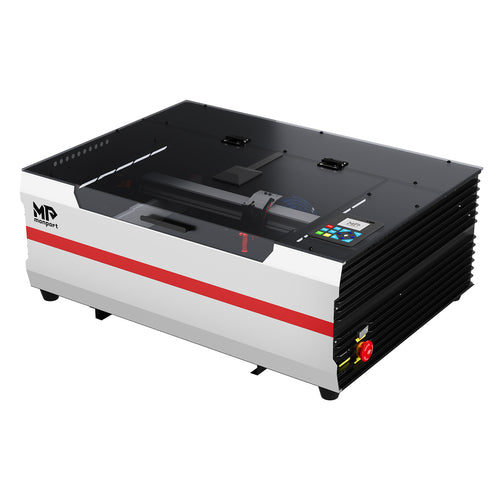
Stone engraving looks “simple” until you try to make it consistent: contrast varies by slate vs granite vs marble, surfaces aren’t always uniform, and residue can blur fine details. This refreshed guide keeps the original topic and URL intent, but updates the machine story to Monport’s current promoted desktop CO2 model: Monport Mega S.

How a CO2 laser works (the “secret” behind stone engraving)
A CO2 laser generates an infrared beam that’s guided through optics and focused onto a tiny spot. On stone, you’re usually not “cutting deep” like acrylic— you’re creating a visible mark by changing the surface (micro-fracturing, surface removal, or coating removal depending on the stone and finish). That’s why technique matters more than brute force.
Why Mega S is built for repeatable stone engraving
When you’re engraving slate coasters, memorial stones, plaques, or décor tiles, repeatability is profit: consistent placement, consistent focus, and clean airflow. Mega S is listed as a 70W CO2 desktop system with a 700 × 350mm working space and up to 600mm/s max working speed, plus workflow features like camera preview and Auto Focus. Verify the current specs/features here: Monport Mega S specs & features.

Best stones to engrave (and what to test first)
Beginner-friendly stone blanks
- Slate: often produces strong contrast and crisp detail (great for coasters and plaques).
- Granite: durable and premium; contrast varies by color and polish—test a small grid first.
- Marble: elegant, but results vary; light stones may show less contrast without dialing in settings.
Use extra caution
- Highly polished stone: can show “patchy” results; focus and residue control become critical.
- Coated/painted stone or tiles: engraving may remove coating instead of marking stone—test before production.
- Unknown rocks: mixed composition can behave unpredictably—always test first.
How to engrave stone with Mega S: step-by-step workflow
Step 1: Clean and stabilize the stone
- Wipe dust and oils off the surface so the mark stays consistent.
- Use a simple jig (corner stops) so every piece loads in the same position.
Step 2: Design for stone (contrast-friendly files)
- Use bold lines and clean shapes for rough stone surfaces.
- For photos, convert to a dithered/engraving-friendly format and test on slate first.
- Keep text thick enough to remain readable after surface texture “breaks up” fine detail.
Step 3: Place accurately (camera preview helps reduce scrap)
Stone blanks are not cheap—placement mistakes hurt. Mega S highlights camera preview so you can confirm where your design will land before engraving.
Step 4: Focus for consistency (especially on uneven thickness)
Stone thickness varies. Mega S highlights Auto Focus to measure material thickness/height and keep focus consistent, which helps maintain cleaner detail across batches. Learn about Mega S workflow features.

Step 5: Settings strategy (then test grid)
Stone varies too much for “one perfect setting.” Start with a small test grid and adjust in small steps:
- Power: start low–mid and increase gradually until contrast appears.
- Speed: moderate to fast; slow down only if marks are too light.
- Passes: prefer 2 lighter passes over 1 aggressive pass if you’re chasing contrast.
- Line interval: tighten for finer detail; loosen slightly if overheating reduces clarity.
- Airflow: keep exhaust on to reduce residue haze between passes.
Step 6: Finish and clean
- Brush or wipe residue off to reveal the final contrast.
- If you sell premium pieces, standardize your cleanup step so every item “matches” in your product photos.
Pro tips for “stunning” stone engraving results
- Slate is your training ground: dial in your workflow on slate before moving to polished granite/marble.
- Jigs beat talent: repeatable placement is more important than fancy designs when you scale production.
- Batch planning: group similar stones (same finish/thickness) to reduce setting changes.
Ready to evaluate Mega S for repeat stone engraving (camera placement + Auto Focus + production workflow)? Explore Monport Mega S here.