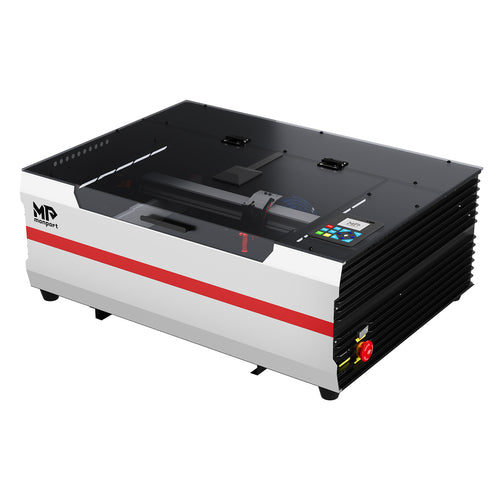
If you have started comparing machines online, you probably noticed that finding the right laser cutter desktop involves more than picking the highest wattage on the page. Work area, cutting thickness, focus systems, and everyday usability all shape how a machine actually performs once it is sitting on your desk. Just as important is the program running behind the scenes. The best laser engraving software you pair with your machine can be the difference between a frustrating first week and a smooth, repeatable workflow. This guide breaks down what actually matters when shopping for a laser cutter desktop, compares Monport's most popular models side by side, and walks through the top software choices so you can match hardware and software before you ever click "buy".


What to Look for in a Laser Cutter Desktop
Before comparing specific models, it helps to know which specs actually affect day-to-day results. A laser cutter desktop is judged less by wattage alone and more by how that power translates into usable performance. Here is what to check first:
- Laser power (watts): higher wattage cuts thicker material in fewer passes, but most hobby and gift projects run fine on 40-45W.
- Work area: measured in inches or millimeters, this determines the largest sheet or sign you can process in one pass.
- Cutting thickness: check the manufacturer's rated maximum for acrylic and wood, since engraving depth and cutting thickness are not the same thing.
- Focus system: manual focus takes longer to dial in, while semi-autofocus and full autofocus save time on every material change.
- Speed and ventilation: faster engraving speeds cut production time, and a solid exhaust system keeps smoke and odor under control indoors.
- Software compatibility: confirm which programs the machine supports before you buy, since this affects your daily workflow more than any single spec.

Comparing Monport's Desktop CO2 Laser Cutter Lineup
Monport builds several desktop CO2 machines at different power levels, so the right laser cutter desktop really depends on how often you will use it and what you plan to make. Here is how the current lineup breaks down.
K40: Best Entry-Level Laser Cutter Desktop
The Monport K40 is a compact 40W CO2 laser built for beginners and casual hobbyists. It works on an 12" X 8" bed, cuts up to 3mm acrylic, and uses manual focus with red dot guidance for line-up. It is not built for daily production runs, but it is a low-cost way to learn the basics of engraving and cutting before investing in a larger system.

Reno45 Series: A Balanced Step Up
The Reno45 Pro moves up to a 16" x 12" work area and 45W of power, with semi-autofocus that gets you focused in seconds instead of minutes. It cuts up to 15mm acrylic at speeds up to 600mm/s, and its dual work platforms (honeycomb and blade bed) make it flexible enough for signs, coasters, and small batches of personalized gifts.

Reno65 Pro and MEGAS 70W: Built for Volume
For shops producing repeat orders, the Reno65 Pro doubles the work area to 24" x 16" and cuts up to 20mm acrylic. The MEGAS 70W sits at the top of the desktop range, with full autofocus, a built-in camera, speeds up to 1000mm/s, and smart batch fill for repeating the same design across multiple pieces of material automatically. This is the model most small businesses reach for once volume becomes a factor.

Quick Comparison: Monport Desktop CO2 Laser Models
| Model | Laser Power | Work Area | Max Engraving Speed | Focus Mode | Best For |
| K40 | 40W | 8" × 12"(20.0 × 30.0cm) | 350mm/s | Manual + Red dot | First-time users, small gifts |
| Reno45 Pro | 45W | 16''×12'' (400*300mm) | 600mm/s | Semi-autofocus | Hobbyists moving into regular use |
| Reno65 Pro | 65W | 24''×16'' (600*400mm) | 800mm/s | Assisted Autofocus | Larger projects, growing shops |
| MEGAS 70W | 70W | 27.56"x13.78"(700x350mm) | 1000mm/s | Full Autofocus + Camera | Small business production runs |

Why the Best Laser Engraving Software Matters as Much as the Machine
Software is what turns a design file into laser paths, controls speed and power settings, and (on camera-equipped machines) lines up your artwork with the material automatically. Even a well-built laser cutter desktop will feel clunky if it is paired with the wrong program. Finding the best laser engraving software for your setup usually comes down to three things: what your machine actually supports, how much manual control you want over settings, and whether you need features like camera alignment or batch processing.
LightBurn: The Industry Standard
LightBurn is the most widely used laser control software on the market, and for good reason. It works across CO2, fiber, and UV lasers, runs on Windows, Mac, and Linux, and offers both a Core license for basic machines and a Pro license with expanded controller support. Its layer-based workflow, image tracing tools, and camera integration make it a strong pick for anyone who wants more control than a stock program provides.

RDWorks and LaserGRBL: Reliable Starter Software
Entry-level machines like the K40 and 40W Pro typically ship compatible with RDWorks or LaserGRBL. Both are free, straightforward programs for basic engrave-and-cut jobs, and they are a fine way to learn laser settings before upgrading to something with more features.
M-Design Hub: Built for the MEGA Series
Monport's own M-Design Hub is a free program built specifically for the Mega and MEGAS machines. It adds a live camera preview so you can see your material before engraving, one-click autofocus, and smart batch fill that recognizes multiple objects on the bed and applies the same design to each one automatically. It runs on both Windows and macOS and pairs naturally with the camera-equipped MEGAS.


Matching Software to Your Machine
Pairing the right program with your machine saves you setup headaches later. If you own a K40 or 40W Pro, RDWorks or LightBurn Core will cover most beginner projects. Reno-series owners get the most flexibility from LightBurn or the bundled RetinaEngrave and CorelDRAW compatibility, especially once projects call for more precise vector editing. MEGAS owners have a choice: M-Design Hub for its camera-driven batch tools, or LightBurn Pro if you already use it across other machines and want one consistent workflow. There is no single best laser engraving software for every setup, only the one that matches how you actually work.
Setup Tips to Get More From Your Laser Cutter Desktop
- Wipe down the lens and mirrors every few sessions — a dusty optic path is the single biggest reason cuts start coming out weak or uneven.
- Before running a new material for the first time, test a small grid of speed and power combinations on scrap. Ten minutes of testing can save an entire ruined sheet.
- Check Monport's release notes before updating firmware or software mid-project. Some updates change default settings, and that's not something you want to discover halfway through an order.
- Once you find settings that work, save them as named presets by material and thickness. Skipping repeat testing is one of the easiest ways to speed up your workflow.
- Run the exhaust fan for every job, even short ones. Smoke residue that isn't cleared out settles back onto the material and can dull engraving contrast.
- If you're upgrading from a lower-wattage machine, don't reuse your old settings as-is — higher power usually calls for slower speeds or a lower power percentage to avoid burning through material.
- Re-check focus whenever you switch between flat sheets and thicker stock; even a millimeter of offset can noticeably soften fine detail.
Frequently Asked Questions
What size laser cutter desktop do I need for a small business?
Most small shops outgrow an 8" x 12" bed quickly. A 16" x 12" or larger work area, like the Reno45 Pro or Mega S 70W, gives you room to batch multiple items in a single run, which matters more for turnaround time than raw wattage alone.
Is LightBurn the best laser engraving software for beginners?
It is a strong option at any experience level, but total beginners sometimes prefer starting with the free software that ships with their machine, then moving to LightBurn once they are comfortable with basic settings.
Can I upgrade software later without buying a new machine?
In most cases, yes. As long as your machine's control board is compatible, you can switch from a starter program to LightBurn or another supported option without any hardware changes.
What materials can a desktop CO2 laser cut?
Wood, acrylic, leather, paper, cardboard, and certain coated or laminated materials are all common choices. Cutting thickness depends on the machine's wattage and focus system, so always check the manufacturer's rated maximum before starting a project.
Does a higher-wattage machine always mean better results?
Not necessarily. Higher wattage helps with thicker cuts and faster processing, but engraving detail depends just as much on focus accuracy, spot size, and the software controlling the job.
Key Takeaways
- Work area, cutting thickness, and focus system matter as much as laser wattage when comparing machines.
- Monport's desktop lineup scales from the entry-level K40 up to the production-ready MEGAS 70W.
- Software controls how a machine actually performs day to day, so check compatibility before you buy.
- LightBurn, RDWorks, and M-Design Hub each suit different machines and skill levels.
- Matching the right software to your machine reduces setup time and improves consistency across projects.
Conclusion
Choosing a laser cutter desktop comes down to matching a machine's power, work area, and focus system to the projects you actually plan to make, then pairing it with software that fits how you like to work. Whether you're starting with the compact K40 or scaling up to the camera-equipped MEGAS 70W, Monport's lineup and its supported software options give you room to grow without switching brands.
Ready to Get Started?
The best way to choose is to compare current models side by side and see which work area, power level, and software combination fits your workflow. Browse the full desktop CO2 laser collection to check specs and availability — and when you're ready to order, use code BESTMP10 at checkout for 8% off your Monport desktop laser cutter.