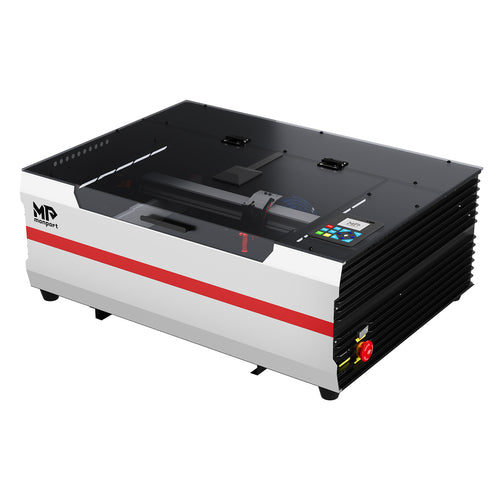
Photo engraving on glass is one of the most impressive laser projects you can offer—wedding portraits, memorial keepsakes, anniversary gifts, and premium awards. But glass is sensitive to heat, and photos demand consistent detail. This refreshed version keeps the original intent of the source article, but updates the machine positioning to Monport’s current promoted desktop CO2 model: Monport Mega S.

First: CO2 “photo engraving” on glass is usually glass etching
Most CO2 workflows create a frosted mark by changing the glass surface (micro-fracturing/etching), not by carving deep like a CNC. That’s why image preparation and heat-control techniques matter as much as the machine.
Why Mega S is positioned for repeatable photo engraving workflows
Photo engraving is unforgiving: small placement errors, uneven focus, and inconsistent residue control can ruin detail. Mega S highlights camera preview for placement and Auto Focus to help maintain consistent focus height across pieces—useful for repeat jobs and premium blanks. For the latest official specs and included features, verify here: Monport Mega S product page.

Step 1: Choose the right glass blank
- Flat glass plaques are easiest for photo work (most consistent focus and alignment).
- Thicker glass is often more forgiving than ultra-thin glass.
- Avoid heavily textured glass for your first photo engravings—texture breaks up fine detail.
Step 2: Prepare the photo (this is where the “magic” happens)
Recommended photo prep checklist
- Use a high-resolution image (sharp eyes, clear edges, good lighting).
- Increase contrast slightly (glass etching benefits from clearer tonal separation).
- Convert to grayscale, then use a photo engraving/dither method to translate tones into dots.
- Crop for composition (faces centered, important details not too close to the edge).
Tip: run a small test sample of the face area first. If the eyes and hair texture look good, your full image usually works.
Step 3: Use a heat-control method for cleaner frosting
Option A: Masking tape / transfer tape
- Apply masking/transfer tape smoothly over the engraving area.
- Engrave through the tape, then peel and clean residue.
- This can reduce surface staining and improve the evenness of the frost.
Option B: Moist paper towel method (common for reducing chipping)
- Place a thin damp paper towel layer over the engraving zone.
- Use lighter settings and test first—this can reduce micro-cracks on some glass types.
- Ensure the towel can’t shift during the job.
Step 4: Placement + focus (detail depends on consistency)
Photo engravings must be perfectly placed and consistently focused. Use a jig to square the plaque and confirm placement before engraving. Mega S highlights camera preview for placement and Auto Focus as part of its repeatability workflow. See Mega S workflow features.

Step 5: Starter settings strategy for photo glass etching
Glass varies a lot, so use a test grid instead of guessing. Start with these principles:
- Power: low to moderate (raise slowly only if the image is too faint)
- Speed: moderate to fast (increase speed if you see chipping or haze)
- Passes: 1 light pass; consider 2 light passes instead of 1 heavy pass for smoother tones
- Line interval / DPI: match your photo prep method; test to avoid “muddy” areas
- Air assist: gentle airflow (avoid blasting damp materials)
Step 6: Cleanup and “premium finish” tips
- Clean residue gently to reveal the final frost.
- Backfill for contrast: placing a dark backing behind the glass often makes photo engravings pop.
- Standardize your finish: use the same backing + lighting in product photos for consistent shop listings.
Troubleshooting: why photo engravings on glass fail
- Too faint: slightly increase power or reduce speed (small steps only).
- Chipping/cracking: reduce power, increase speed, use moisture/masking, try 2 lighter passes.
- Muddy details: improve photo contrast, adjust dithering method, and verify focus.
- Uneven frost: re-clean glass, improve stability/jigging, and check airflow/exhaust.
Ready to build a more repeatable photo engraving workflow? Explore Monport Mega S here.