Want your entry to stand out in a Christmas door decorating contest? Laser-engraved photo panels can add a personal focal point to a holiday display, whether you feature a family portrait, a beloved pet, or a winter scene. Pair the photo panel with a clear seasonal theme, coordinated colors, and decorations that fit the door and its surroundings.
This guide shares practical ideas for using laser-engraved photos in Christmas door decorations, explains how to prepare a photo for engraving, and covers material selection, finishing, and safe display. Results depend on the photo, material, laser system, and settings; test your process on suitable scrap material before making the final piece.

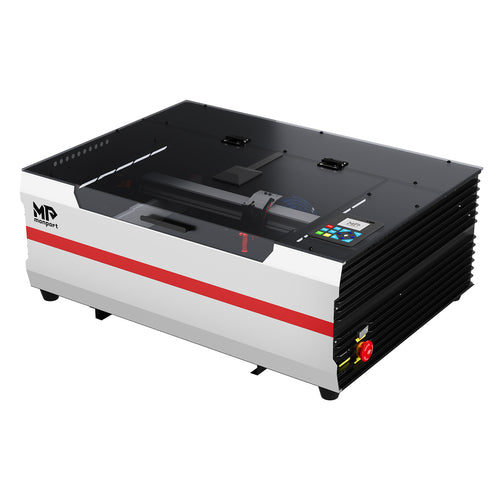
Explore the Monport 80W Built-in Chiller CO2 Laser Engraver & Cutter
Christmas Door Decorating Contest Ideas with Laser-Engraved Photos
A strong contest entry usually has one clear visual idea rather than many competing decorations. Use a photo engraving as the centerpiece, then build the rest of the door around it.
1. Family Photo with a Holiday Frame
Use a family photo on a suitable wood panel and frame it with a simple wreath, evergreen shapes, stars, or a ribbon. Keep the engraved image large enough to recognize from the hallway, and avoid placing too many small ornaments around the photo.

2. A Personalized Photo Ornament
Turn a favorite portrait into a hanging ornament or a small panel attached to the door. Add a year, surname, or short greeting as a separate design element. Make sure the hanging point and attachment are strong enough for the finished piece.

3. A Nostalgic Porch or Winter Scene
For a classic look, use a winter landscape, vintage-style holiday scene, or porch portrait as the engraved focal point. Balance the image with warm wood tones, neutral greenery, and one accent color so the design feels intentional.

4. A Pet Portrait with Seasonal Details
A pet photo can make the display personal and playful. Choose a well-lit image with a clear outline around the face, then add a small snowflake, star, or nameplate. Avoid tiny facial details that may become difficult to distinguish at the final engraving size.
5. A Layered Door Display
Combine one engraved photo panel with a larger cut-out frame, layered stars, or a simple silhouette. Keep the engraved panel as the focal point and check that added layers do not make the door too heavy or obstruct the handle, peephole, signage, or required exit route.

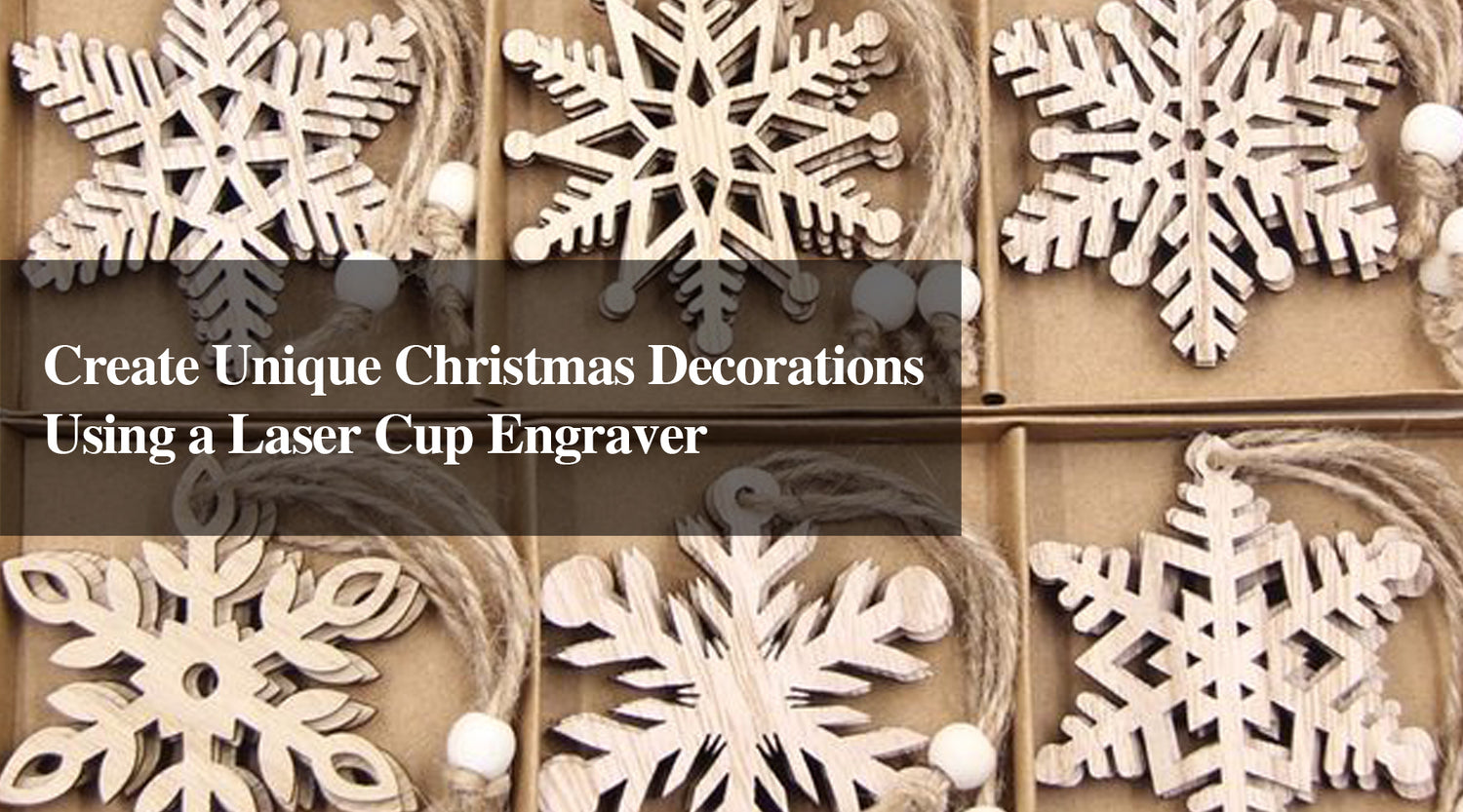
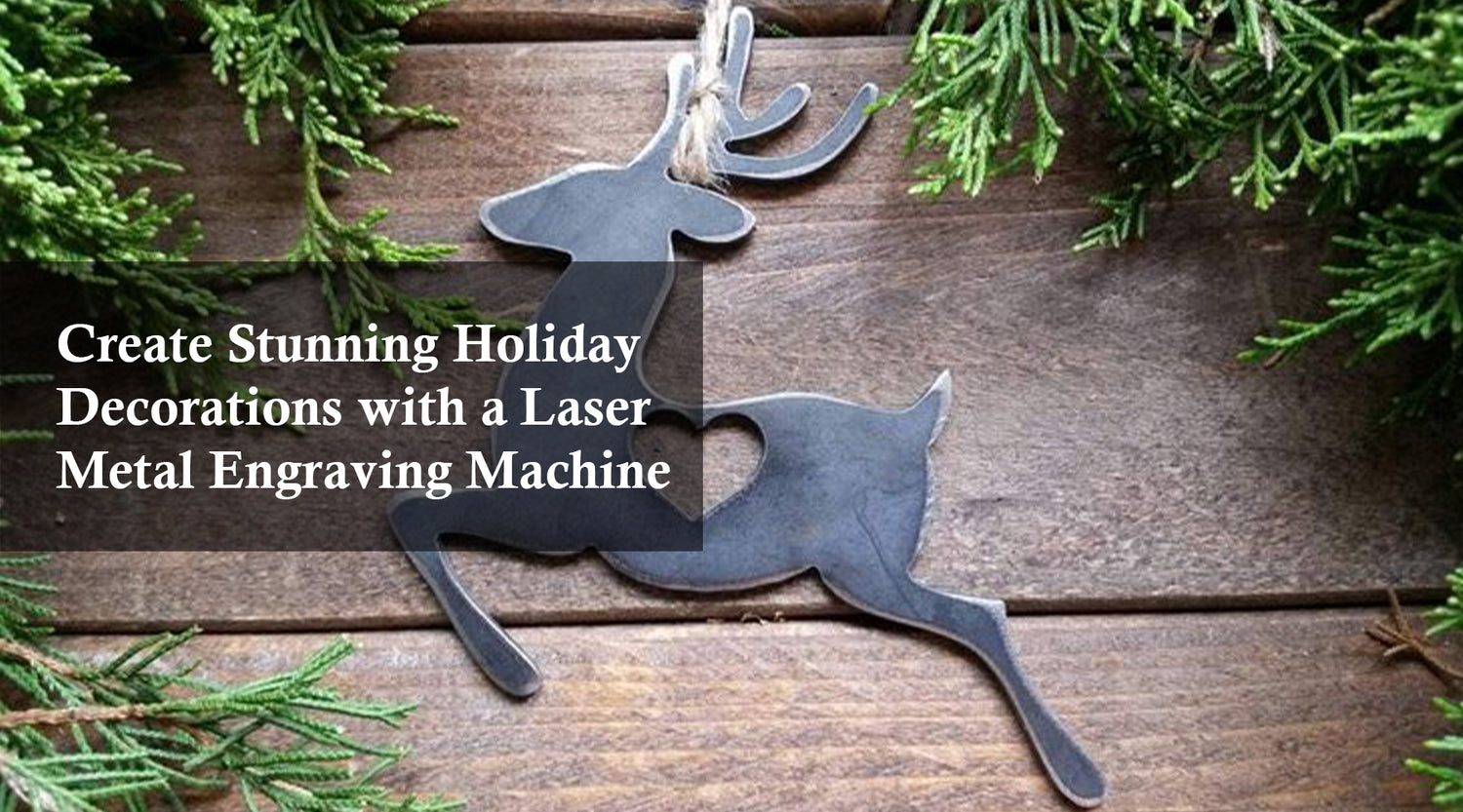
These existing images are visual inspiration, not production-ready engraving files. Confirm that you have permission to reuse third-party images in a published article or project.
How to Prepare a Photo for Laser Engraving
Photo engraving is different from printing a photograph. Software converts image tones into a pattern the laser can reproduce on the selected material. A photo with clear contrast and a recognizable subject is usually a better starting point than a dark, busy image.
- Choose a suitable source image. Start with a sharp, well-lit photo. Faces should be in focus, and the subject should stand out from the background.
- Crop for the available panel. Leave enough space around heads and important details. Check the crop at the actual finished size rather than only on a large monitor.
- Adjust contrast and brightness. Improve separation between highlights, midtones, and shadows without removing important details. Keep an unedited copy of the original.
- Convert and preview the image. Use the image-processing controls available in your laser software. In LightBurn, review the options in the official Adjust Image guide.
- Test on the same material. Make a small test using scrap of the same material and thickness. The same photo can look different on different surfaces.
- Check the final layout. Confirm the panel dimensions, job origin, focus, and engraving area before starting the full piece.
Do not assume one image mode or setting will work for every material. Follow the laser and software manuals, and use settings validated for your machine and material.
Which Materials Work for Photo Engraving on Door Decorations?
| Material | Potential use | What to check |
|---|---|---|
| Wood | Photo panel, nameplate, framed portrait | Grain and color affect contrast. Choose a suitable grade and protect it for the intended environment. |
| Laser-compatible acrylic | Layered frame, ornament, decorative panel | Confirm the exact acrylic type is approved for your laser and suitable for the expected exposure. |
| Glass | Decorative photo or etched accent where the process is supported | Results vary by glass and process; test carefully and consider the risk of cracking or chipping. |
| Coated materials | Selected tags or decorative accents | Check coating composition and laser compatibility. Coating removal is not the same as engraving bare metal. |
Do not assume every leather, plastic, fabric, or metal sheet is safe for every CO2 laser. Check the material manufacturer's safety information and your machine manual before processing it. Unknown plastics and some synthetic materials can release hazardous fumes or damage equipment.
Step-by-Step: Make a Photo Panel for a Christmas Door
- Plan the door theme. Choose a clear idea, such as a family memory, pet portrait, or winter landscape. Pick a limited palette and decide where the engraved panel will sit.
- Measure the available space. Check the door dimensions and make sure the display will not cover handles, peepholes, signs, or access features.
- Prepare the photo and layout. Crop and adjust the image, add any text separately, and check that the design fits the chosen blank.
- Confirm machine compatibility. If you plan to use LightBurn, check the exact controller and required license in the current supported device types documentation. Do not infer compatibility from laser wattage alone.
- Run a test. Use a suitable scrap of the same material to check image contrast and settings. Do not skip the test because the image looks good on screen.
- Engrave with safety controls in place. Follow the machine manual for enclosure, ventilation or extraction, focus, and operating procedure. Stay with the machine while it runs and follow required fire-safety precautions.
- Finish and mount the panel. Use a finish compatible with the substrate and intended exposure. Allow it to cure as directed, then mount the panel securely with hardware appropriate for the door.
- Check the display from a distance. Make sure the photo is recognizable, the main message can be read, and decorations do not interfere with normal use of the door.
Machine overview video. Check the current machine manual for model-specific instructions and limitations.
How to Make the Display Stand Out
- Choose one focal point. Let the photo panel lead the design; use greenery, ribbon, and ornaments as supporting elements.
- Use readable contrast. Test the engraved image and text at the size people will see from the hallway.
- Repeat a few visual elements. Repeating a star, snowflake, or color can make the display look coordinated.
- Keep the display secure. Use appropriate mounting materials and avoid sharp edges, loose pieces, or decorations that block door operation.
- Follow contest rules. Check whether the contest has limits on size, materials, lighting, adhesives, or attachments before building the entry.
Frequently Asked Questions
What photos work best for laser engraving?
Choose a sharp, well-lit photo with a clear subject and enough contrast. Crop it to the final panel size and test the image on the intended material before making the finished piece.
Can I engrave a photo onto any material?
No. Results and safety depend on the material and laser system. Confirm that the exact material is safe for your machine and suitable for the intended engraving process.
Can I use the Monport 80W CO2 laser for a Christmas photo panel?
The Monport 80W CO2 laser may be an option for photo panels made from compatible materials. Check the current product specifications, controller and software compatibility, machine manual, and material guidance before production.
Will an engraved photo automatically be weatherproof?
No. Engraving does not make a panel weatherproof. Choose an appropriate substrate and finish, mount the piece securely, and consider whether the display will be exposed to rain, sunlight, or temperature changes.
Are laser-engraved decorations allowed in every Christmas door contest?
Rules vary by contest and venue. Review the organizer's requirements for materials, dimensions, lighting, mounting, and fire safety before submitting your entry.
Related Christmas Project Ideas
For more seasonal inspiration, see Laser Cutting & Engraving Gift Ideas for Christmas and Acrylic Cutting Tool for Elegant Christmas Table Decorations.
Conclusion
A memorable Christmas door display starts with a clear theme, a photo that engraves well, and a panel that suits the display location. Use personally owned or licensed photos, check material and machine compatibility, test the image before production, and secure the finished piece safely. With thoughtful composition, the engraved photo can become the centerpiece of a coordinated holiday door design.