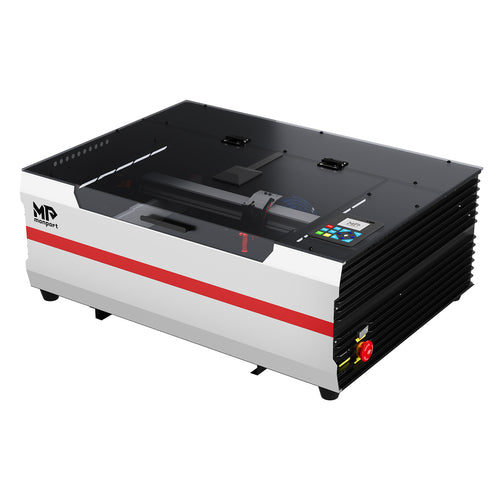
Wood is the easiest material to fall in love with: it engraves beautifully, cuts cleanly, and turns into sellable products fast. The difference between “nice” and “perfect,” though, is repeatability—consistent placement, consistent focus, and a workflow that lets you run batches without rework. This refreshed version keeps the original topic and intent, but updates the machine positioning to Monport’s current promoted desktop CO2 model: Monport Mega S.

Why CO2 laser engravers create “cleaner” wooden designs
A CO2 laser can both engrave and cut wood, which means you can build one design pipeline for signs, ornaments, layered art, coasters, gift boxes, brand tags, and packaging inserts. The key to premium-looking wood is controlling smoke residue and keeping detail crisp— which comes down to material choice, airflow, and a consistent focus/placement routine.
Why Mega S is positioned as the upgraded Mega-class option
Mega S is listed as a 70W CO2 desktop laser with a 27.56" × 13.78" (700 × 350mm) working space and a max working speed listed as 600mm/s. It also highlights workflow tools designed to reduce setup friction, including camera preview for placement, Auto Focus, and batch-oriented tools like Smart Batch Fill. For the latest specs and included features, verify here: Monport Mega S product page.

Pick the right wood for the look you want
Best woods for crisp, detailed engraving
- Basswood / linden: even grain, great for fine line art and photo engraving.
- Maple: premium look, clean edges, excellent for signage and gifts.
- Birch plywood: strong contrast—test because glue layers vary by supplier.
Woods that need extra testing
- Pine: resin can burn unevenly—use stronger exhaust + air assist and test first.
- Dense/oily hardwoods: may engrave lighter—adjust with a test grid.
Step-by-step workflow for “perfect” wooden designs
1) Prep your blank (reduce smoke staining)
- Wipe dust off before engraving.
- Optional: apply low-tack masking film to keep light woods cleaner.
- Make sure the wood is flat—warping causes uneven focus and uneven shading.
2) Place accurately (jigs + camera preview)
Consistent placement is what makes your products look professional. Use a simple corner jig for repeat blanks, then confirm placement with camera preview before you run. This is especially important for edge-close designs, cutout text, and layered projects.
3) Focus consistently (for sharp edges and even depth)
Focus affects everything: line sharpness, fill uniformity, and photo engraving quality. Mega S highlights Auto Focus to help keep focus consistent when blanks vary slightly in thickness. See Mega S workflow features.

4) Start with safe settings (then run a test grid)
Wood varies by species, moisture, grain, glue layers, and finish, so test first. Use these as starter ranges:
- Power: low–mid (increase gradually for more contrast/depth)
- Speed: mid–fast (increase speed if you see charring)
- Line interval: tighter for photos/detail; loosen if overheating causes haze
- Air assist + exhaust: keep enabled for cleaner results and more consistent batches
Batch tips for consistent wooden products
- Standardize blanks: same supplier and thickness reduces surprises.
- Use jigs: faster reloads and fewer placement mistakes.
- Batch layout tools: Mega S highlights Smart Batch Fill to speed repeating shapes and reduce manual setup.

Ready to build a more repeatable wood workflow with camera placement, Auto Focus, and batch-friendly setup? Explore Monport Mega S here.