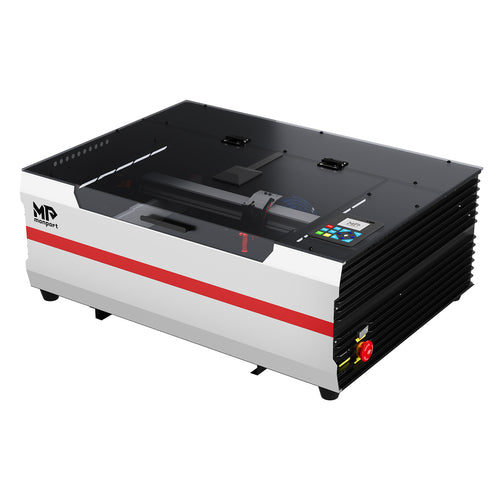
Wood is one of the most beginner-friendly (and sellable) laser materials—signs, ornaments, coasters, gift boxes, tags, and packaging inserts can all be produced quickly once your settings are dialed in. This refreshed guide keeps the original intent of the source post, but updates the machine positioning to Monport’s current promoted desktop CO2 model: Monport Mega S.

Why Mega S is a strong desktop CO2 choice for wood
Wood engraving quality depends on consistent placement, consistent focus, and good smoke control—more than raw power alone. Mega S is positioned as a 70W CO2 desktop laser with a listed 700 × 350mm working space and up to 600mm/s max working speed. It also highlights workflow tools like camera preview for positioning, Auto Focus, and batch-oriented engraving features (Smart Batch Fill). For the latest specs and included details, verify here: Mega S product page.
Quick spec snapshot (from the Mega S page)
- Laser power: 70W CO2
- Working space: 27.56" × 13.78" (700 × 350mm)
- Max working speed: 600mm/s
- Air assist: 50kPa (helps reduce charring)
- Exhaust fan: > 500 CFM (helps reduce smoke residue)

Step 1: Choose the right wood
Beginner-friendly woods
- Basswood / linden: light color, engraves evenly, great for photos and fine line work.
- Birch plywood: good contrast; test glue layers because sheets vary.
- Maple: clean, premium finish for signs and gifts.
Woods that need more testing
- Pine: resin can cause uneven burns and darker staining—use strong exhaust + air assist.
- Oily or dense woods: may engrave lighter; test before batches.
Step 2: Prep the surface (this prevents smoke staining)
- Wipe dust off: dust increases residue and blotchy marks.
- Optional masking: low-tack masking film/tape helps keep light woods cleaner and speeds cleanup.
- Flatten the stock: warped boards cause focus issues and uneven engraving.
Step 3: Import your design and set layout
Use high-contrast artwork and readable fonts for your first runs. If you’re doing product batches (coasters, tags, ornaments), keep consistent margins and use a jig so each blank lands in the same spot every time.
Step 4: Place and align your material (repeatability = profit)
Mega S highlights camera preview for positioning—use that workflow to confirm placement before you engrave. For batches, combine camera placement with a simple corner jig so you can reload blanks faster with fewer errors.
Step 5: Focus correctly (for crisp edges and even depth)
Focus consistency is what makes engraving look sharp instead of fuzzy. Mega S highlights Auto Focus to help keep focus consistent across material thickness variations—useful when boards vary slightly. See Mega S workflow features.

Step 6: Start with safe baseline settings (then test grid)
Wood varies by species, moisture, grain direction, and glue layers (plywood). Always run a small test grid first. Use these as starter ranges:
- Power: low–mid (increase gradually for more contrast/depth)
- Speed: mid–fast (increase speed if you see charring)
- Line interval: tighter for photos/detail; loosen slightly if the surface overheats
- Air assist: on (helps reduce charring and flare-ups)
- Exhaust: on (reduces smoke staining and residue)
Step 7: Engrave safely
- Never leave the machine unattended.
- Keep the exhaust running during and after the job.
- Have a fire safety plan in your workspace (wood can ignite if settings are too aggressive).
Step 8: Cleanup and finishing
- Peel masking (if used) and wipe residue with a dry cloth.
- Light sanding can soften smoke marks on some woods (test first).
- Seal/oil if your product needs durability (coasters, signs, cutting boards).
Batch tips for wood products
- Use jigs: repeat placement faster and reduce rejects.
- Standardize blanks: same supplier and thickness = fewer surprises.
- Batch layout tools: Mega S highlights Smart Batch Fill for repeating shapes and faster setup.

Ready to upgrade your wood workflow with faster setup and repeatable results? Explore Monport Mega S.