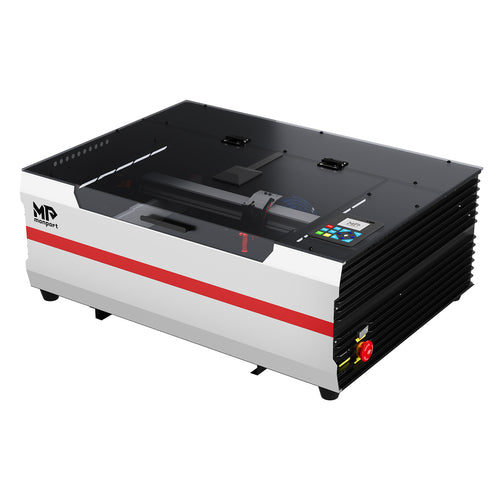
Finding a laser engraving tutorial is easy. Finding one that matches your machine, software, and project can take considerably more effort. A video may use a different controller; a forum suggestion may describe settings that are unsuitable for your material.
For laser engraving tutorials, begin with LightBurn's official Getting Started guide if you use compatible LightBurn software, or your manufacturer's model-specific documentation. For feedback or software questions, visit a specialist forum such as the LightBurn Software Forum. If a machine develops a suspected hardware fault, use manufacturer support rather than experimenting with forum fixes. This guide shows you where to start and how to choose the right next step.
Which Laser Engraving Resource Should You Start With?
You do not need to visit every learning platform. Match the resource to the question you have right now:
| Your goal | Best starting resource | What to check |
|---|---|---|
| Learn LightBurn's interface or set up a supported laser | LightBurn Getting Started | Controller support and software version |
| Understand job positioning or layer behavior | LightBurn's official user guide | The specific setting or workflow involved |
| Practice with a first laser project | LightBurn First Project | Suitable machine, approved material, and safety guidance |
| Ask about LightBurn editing or connection issues | LightBurn Forum | Choose Software Questions or Hardware Compatibility |
| Resolve Monport machine setup, warranty, or suspected hardware issues | Monport Contact Us | Exact model, order information, and evidence of the problem |
If you want a wider comparison of free lessons, videos, and course directories, Monport already has a separate guide to laser engraving courses and tutorials. The emphasis here is finding the right support channel when a lesson does not answer your question.
Where Can You Find Reliable Laser Engraving Tutorials?
A useful tutorial identifies what the reader will learn, which software or machine it assumes, and what to check before reproducing the result. The source matters most when the instructions affect a controller, device setup, or safety procedure.
Official Laser Software Tutorials
Official software documentation is generally the best starting point for a particular feature. The LightBurn user guide includes identifying the laser, connecting to it, creating artwork, using colors and layers, previewing a job, understanding its origin, and completing a first project. These are separate learning tasks rather than one interchangeable set of settings.
For example, if artwork appears in the correct place on screen but engraves somewhere unexpected, consult the guide's material on coordinates and job origin, alongside previewing and framing, before changing hardware settings. If a shape behaves unexpectedly, check colors and layers. Follow the documentation matching your software version and supported hardware. The same software interface does not guarantee that two machines use the same controller configuration.

Videos, Short Lessons, and Structured Courses
Videos are especially helpful for seeing material placement, framing, and the sequence of software operations. Check the creator's machine, controller, software version, material, and date before copying a workflow. An independent video can be a useful illustration without being authoritative guidance for your equipment.
Course discovery sites can help you find lessons, but a listing may lead to one short demonstration rather than a complete, progressive course. A structured beginner course should explain prerequisites, introduce skills in a deliberate order, and include a practice task. Do not assume a publicly listed lesson includes full access or individual support.
Manufacturer Tutorials and Knowledge Bases
Machine setup, focusing procedures, maintenance, and model-specific warnings should start with the manufacturer's documentation. For Monport owners, the Beginner's Guide offers topical learning resources, while Monport How-tos includes focused maintenance and troubleshooting subjects. These are different from a sequential software course. Identify the exact machine before using a procedure or downloading settings.
Where Can You Find Laser Engraving Communities and Forums?
When a tutorial doesn't explain a specific error, a laser engraving community can let you describe your setup and share screenshots or photos. Choosing the right discussion area is more useful than posting the same question to several unrelated groups.
| Community | A good reason to visit | Where to start / limitation |
|---|---|---|
| LightBurn Software Forum | LightBurn editing, software setup, supported controller connections | Choose the relevant software or hardware category; forum advice is not manufacturer warranty support |
| LA Hobby Guy | Hobby diode, CO₂, fiber projects and shared workflows | Select the machine-type board, not a random settings thread |
| LaserUser Forum | CO₂ machines, Ruida controllers, RDWorks, LightBurn and technical discussions | Read registration instructions; introduce yourself in the new-members area |
| r/Laserengraving | Engraving questions and finished-work feedback | Community responses need verification |
| r/lasercutting | Cutting patterns, kerf, assemblies and cut-file discussions | Cutting advice may not transfer to engraving |
LightBurn Forum: Choose Software or Hardware Compatibility
The official forum separates LightBurn Software Questions, covering design, editing and program usage, from LightBurn Hardware Compatibility, covering how the software works with specific machines and controllers. Its general Community Laser Talk area is not the category for official LightBurn support questions.
Search the precise error message or controller name before posting. If you cannot connect a machine, check software support and the appropriate hardware-compatibility category; if you cannot edit a text object, use the software-questions category. The LightBurn guide to asking for help provides additional direction about presenting a reproducible problem.
LA Hobby Guy and LaserUser: Match the Machine and Discussion
LA Hobby Guy separates LightBurn topics from hobby diode, CO₂ and fiber laser discussions, as well as a finished-project area. A question about a diode engraving workflow belongs in a different context from a fiber-metal marking discussion.
LaserUser is more specialized: its forum describes a focus on CO₂ machines, Ruida, RDWorks, optics, alignment and troubleshooting. Its welcome instructions ask new registered members to introduce themselves in New Members – Introduce Yourself First before posting elsewhere. This matters because its helpful technical discussions assume that readers identify their hardware and software.
Reddit and Other Maker Groups
Reddit can be valuable for feedback on a finished engraving, design options, or what to investigate next. Try a laser engraving discussion for an uneven letter fill or blurry raster image; a laser cutting discussion is more fitting for joints, cut paths or fit problems. Do not treat an unexplained power-and-speed recommendation as proof that it will work safely on another machine.
Where Can Beginners Find DIY Projects and Design Files?
Once you know the basics, a modest project helps connect software preparation with real-world results. A wooden nameplate or coaster can be a reasonable beginner exercise only if the selected wood is approved for your machine and its documented safety requirements are met.

Start With a Complete First-Project Tutorial
Rather than downloading dozens of designs, follow one project that explains the steps. LightBurn's First Project introduces an example project and the surrounding workflow. Read the model's setup instructions first; do not treat a sample job as a universal material-settings chart. The useful learning outcome is being able to import or create a design, verify placement, understand layers, conduct appropriate checks and evaluate the result.
Understand the Difference Between Files and Tutorials
An SVG or DXF can supply vector artwork; a PNG commonly supplies raster image data. A file alone rarely explains machine setup or material testing. Inspect dimensions, duplicate paths, cutting versus engraving layers, and license terms. Free to download is not the same as licensed for commercial use.
A design-resource directory helps you find files, whereas the Monport DIY Laser Projects page is better described as project inspiration and related Monport content. Do not assume every project shown there includes a freely downloadable design or complete lesson.
How to Choose a Tutorial That Actually Fits Your Machine
A well-produced tutorial can still be wrong for your equipment. A CO₂ transparent-acrylic cutting demonstration does not establish the same result for an ordinary blue diode laser, and a video made in LightBurn may assume a controller unlike yours.
Before following unfamiliar laser cutter tutorials or engraving advice, check four things:
- Machine: laser type, exact model, controller and relevant accessories.
- Software: supported version, device profile and the feature being demonstrated.
- Material: identity, coating, thickness when relevant, and manufacturer approval.
- Operation: whether the task involves cutting, surface engraving, marking or another supported process.
The software you use to design artwork does not, by itself, prove the laser can safely process the material in a video. Settings depend on the laser source, optics, focus, surface and machine configuration. Avoid copying power, speed or number of passes without checking the original conditions and your own manual.
For safety, consult the manufacturer instructions and recognized guidance. OSHA's laser-hazard guidance addresses hazardous fumes and ventilation among other laser risks; OSHA's laser safeguards guidance discusses guarding, interlocks and operating equipment according to the applicable instructions. Do not bypass protection systems to reproduce a demonstration. Outside the United States, follow applicable local laser-safety and workplace regulations as well.
How to Get Useful Help When a Laser Project Goes Wrong
Post the exact machine model, software version, material, relevant settings and the difference between expected and actual results. “The engraving looks bad” is hard to diagnose; “the left side of each letter is lighter than the right” gives others something to investigate.
Choose the Right Support Channel
| Problem | Start here | Evidence to prepare |
|---|---|---|
| Unexpected text, layers or layout | Software documentation and software-questions forum | Screenshot, version, example design |
| Device connection or controller compatibility | Software compatibility docs and hardware forum | Controller/model details, connection error |
| Uneven or blurry engraving | Relevant machine community, then manufacturer if unresolved | Photo, approved material, settings, focus steps |
| Wrong design location | Software origin/framing documentation | Preview and positioning screenshots |
| Warranty, defective component, unexplained machine malfunction | Manufacturer helpdesk | Model, order details, symptoms, photos/video |
| Electrical, optical or other potentially hazardous fault | Stop operation; qualified official support | Describe fault without repeating unsafe tests |
Make Your Forum Question Easy to Answer
A useful post describes what the job should do, what actually happened and which nonhazardous checks you already attempted. For a software error, attach the precise message. For a quality issue, show the full workpiece and a close-up. For an offset design, include a screenshot of the preview and origin setting when appropriate. Keep passwords, full serial numbers, order details and customer information out of public threads.
Copyable Example: Ask for Engraving Help
Subject: Uneven Wood Engraving — Help Identifying the Cause
Machine: [Exact model and laser type]
Software: [Application and version]
Material: [Wood type, thickness and finish]
Settings: [Power, speed, passes and other relevant values]
Expected result: [Describe the intended appearance]
Actual result: [Specify uneven shading, missing lines, shifted artwork or the error displayed]
Troubleshooting attempted: [List safe tests already performed]
Attachments: [Photos or screenshots, with private information hidden]
This is an illustrative question template, not a report of an actual machine test. Its purpose is to help other members narrow down possibilities instead of guessing from a vague description.
When to Use Official Manufacturer Support
Forums are useful for ordinary design and workflow questions. Suspected hardware failures, warranty requests and potentially hazardous conditions require a different path. Stop operating equipment if a safety-critical fault is suspected; do not continue changing wiring, protective systems or optical components based solely on community comments.
For a Monport issue, start at the official Monport technical support contact page. Its Tech Support section directs customers to a Helpdesk and requests an order number and a photo or video description of the problem. Provide those details through the official support process, not a public forum. Include the exact machine model and a concise history of the issue; follow the support team's instructions for any further checks.
Where Monport Owners Can Find Official Learning Resources
Monport's learning and support pages serve different purposes:
| Monport resource | Use it when you need | Important check |
|---|---|---|
| Beginner's Guide | General learning articles and introductory topics | Choose the article for your software or machine type |
| How-tos | Focused machine-maintenance or troubleshooting articles | Never apply another model's repair steps automatically |
| Download Center | Model manuals and software-related resources | Confirm the exact product and manual version |
| Contact Us / Tech Support | A helpdesk request for machine-specific issues | Have order details and photos/video ready |
The Download Center identifies software resources with specific applications—for example, it labels RDWorks for ONYX 55W and EZCAD for fiber engravers. That does not mean every Monport machine supports every listed program. Always confirm the software and configuration against your own model's documentation.
Frequently Asked Questions
Can I learn laser engraving online for free?
Yes. Official software documentation, public instructional videos and some beginner project tutorials can help you start without buying a separate course. Check software licensing, individual lesson access and your machine's safety documentation: “free tutorial” does not mean every software feature or design file is free to use.
Should I start with videos or a structured laser engraving course?
Choose a video for a specific, observable task such as framing a design or setting up a layer. A structured course may be more useful if you need a sequence of basic concepts and practice tasks. Review the syllabus first; a directory listing for a short demonstration is not necessarily a complete beginner course.
What if the forum cannot solve my problem?
Collect the steps you've tried, the exact model, relevant screenshots and any error message. If the question is machine-specific, involves warranty coverage, or suggests a fault, move to the manufacturer's official support channel. For safety-critical symptoms, stop operating the laser rather than performing more experiments.
Where can I find design files I can use in a business?
Look for the license supplied by the original file creator or marketplace. Check whether commercial sales, modification and redistribution are explicitly allowed, and retain a record of those terms. File compatibility and permission are separate questions: an SVG that opens correctly in your software does not automatically carry commercial rights.
Find the Next Resource That Matches Your Project
To learn a software feature, open the official tutorial for that feature. To practice, choose one complete beginner project that fits your machine and material. If you run into trouble, select the community or technical-support channel that matches the problem and include enough information for a useful response.
For Monport owners, the Download Center is a practical starting point for model documentation; machine-specific faults belong with the official technical support team. The goal is to find the right instruction or support—not collect more tutorials than you can use.