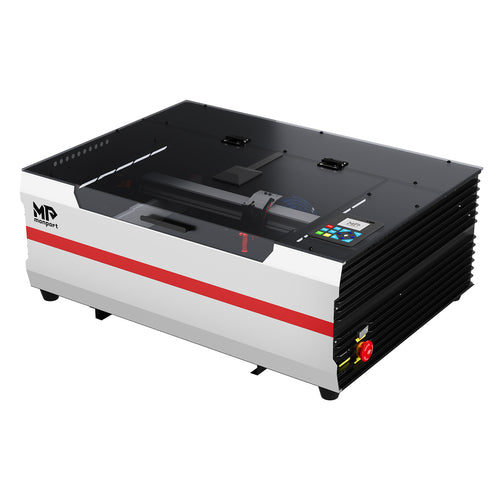
Are you ready to take your laser engraving and cutting projects to the next level? The newly upgraded Monport MEGAS is making waves as a premier desktop CO2 laser machine. Packing a punch with a robust 70W laser engraver tube, intelligent precision, and an ultra-generous workspace, this machine offers unmatched value for both hobbyists and small business owners.
Whether you're looking to create rapid prototypes, run serial micro-engravings, or dive into detailed custom woodwork, setting up your machine correctly is the crucial first step. In this guide, we walk you through everything you need to know about unboxing, configuring, and getting your Monport MEGAS ready for its first project.


Why Choose the Monport MEGAS 70W Laser Engraver?
Before cracking open the box, let’s look at why this machine stands out among standard desktop CO2 laser systems:
-
Unmatched Spot Precision: Delivers a class-leading laser spot size of 0.05–0.08 mm—a 50% to 75% reduction in spot size compared to standard 0.15 mm competitors. This translates into finer details and incredibly crisp lines.
-
Blazing Fast Speeds with LiDAR Autofocus: Thanks to its integrated LiDAR-based distance measurement system, the Monport MEGAS achieves 100% automated focus and engraving speeds up to 600 mm/s without sacrificing precision.
-
Massive Working Area & Autopassthrough: A generous 700 x 350 mm bed paired with intelligent Autopassthrough allows you to feed, stack, and process oversized items or mass-produce batches seamlessly.
What’s in the Box? Unboxing Checklist
When your Monport MEGAS arrives, it is securely packaged with dense foam padding to keep the optics and laser tube safe during transit. Carefully cut the straps, lift off the outer shell, and ensure you have all the following included items and accessories:

Top Tip: Keep the original packaging box and foam for at least 30 days in case you need to utilize customer service or move the machine safely in the future.
Step-by-Step Monport MEGAS Setup Guide
Setting up a powerful 70W laser engraver might seem intimidating, but Monport has engineered this machine with beginner-friendly features that dramatically shorten the setup time. Follow these steps to get up and running smoothly.
Step 1: Secure Placement & Inspection
Before removing the protective packaging, prepare a suitable workspace.

The Monport MEGAS features a generous 700 × 350 mm working area, so ensure your table has additional space around the machine.
Your setup location should include:
- Stable workbench
- Proper ventilation
- Nearby power outlet
- Space for the exhaust hose
- Room for opening the lid completely
Avoid placing the machine in humid or dusty environments.
Step 2: Remove All Protective Materials
Carefully unpack the machine and remove:

- Foam blocks
- Protective tape
- Shipping brackets
- Internal packaging materials
Double-check inside the engraving chamber for any accessories secured during shipping.
Before powering on the machine, verify that the laser head moves freely across both X and Y axes.
Step 3: Install the Exhaust System
Proper ventilation is essential when operating any desktop CO2 laser machine.
The Monport MEGAS includes an upgraded exhaust system that create negative pressure inside the machine. This efficiently removes smoke while minimizing gas leakage.

Installation is simple:
- Connect the air duct adapter.
- Attach the exhaust hose.
- Secure it using the supplied clamp.
- Route the hose to an outdoor vent or filtration system.
This setup ensures cleaner operation during engraving and cutting.
Step 4: Fill the Cooling System
The laser tube requires coolant before operation.

Using the supplied funnel and rubber ball:
- Open the water inlet.
- Slowly add the included antifreeze.
- Fill the cooling system according to the manual.
- Remove trapped air bubbles if necessary.
- Check for leaks before powering on.

Never operate the machine without coolant.
Step 5: Connect the Power Cable
Once the cooling and ventilation systems are installed:

- Plug in the power cord.
- Switch on the main power.
- Allow the machine to initialize.
The smart touchscreen will guide you through the startup process.
Step 6: Install the Optical Target
One standout feature of the Monport MEGAS is its 5-minute visual light path alignment system.
Traditional CO2 lasers often require time-consuming mirror adjustments.

This feature saves valuable time while maintaining excellent engraving precision.
Step 7: Connect to Your Computer
The Monport MEGAS now supports external LightBurn connectivity.

Connect the machine using the supplied USB Type-C cable or compatible connection method.
Users can take advantage of advanced LightBurn features including:
- Autofocus
- Camera positioning
- Wireless connectivity
- Material libraries
- Advanced engraving settings
This integration offers significantly more flexibility than many competing desktop laser systems.
Step 8: Install M-Design Hub
If you prefer Monport's software, download the latest version of M-Design Hub along with the newest firmware.

Keeping your software updated ensures:
- Improved stability
- New features
- Better camera performance
- Compatibility improvements
Always install the latest firmware before beginning production work.
You can find the latest downloads directly on the official M-Design Hub Download Page.
Step 9: Check the Camera
The MEGAS features a 8MP camera that assists with object placement, batch engraving, and intelligent pattern filling.
Many new users ask:
Do I need to calibrate the camera?
The answer is usually no.
If the camera image appears correctly after installation, no calibration is necessary.
Avoid performing distortion correction unless instructed by Monport support because the process cannot be reversed.
Step 10: Perform Your First Test Engraving
Before starting customer projects, perform several test engravings.
The included materials make this easy.
Try engraving on:
- Acrylic
- Linden wood
- Kraft paper
The integrated LiDAR autofocus automatically adjusts the laser height, allowing you to focus on selecting your engraving settings rather than manually adjusting the machine.
Tip: For complete installation instructions and advanced settings, you can check the full user manual here: MEGAS User Manual
Final Thoughts
The Monport MEGAS makes first-time setup far less intimidating than many traditional CO2 laser systems. Thanks to its visual light path alignment, LiDAR-powered autofocus, intelligent camera, and LightBurn compatibility, users can go from unboxing to engraving in a remarkably short time.
Whether you're upgrading your workshop or purchasing your first desktop CO2 laser machine, the Monport MEGAS offers an excellent balance of power, precision, and ease of use. Its combination of a 70w laser engraver, spacious work area, intelligent automation, and production-ready features makes it a capable solution for hobbyists, makers, and growing businesses alike.
Frequently Asked Questions & Troubleshooting
Q1: Do I need to calibrate the panoramic 8MP camera after installation?
A: If your camera image displays normally inside your software after installation, no calibration is required. The integrated camera automatically assists with batch processing and pattern filling. Warning: Distortion correction calibrations cannot be reversed easily. Please contact customer support before initiating an unneeded calibration.
Q2: Where can I download the latest firmware and design software?
A: Always make sure your machine is running on the latest software version for optimal safety and AI image processing. You can find the latest downloads directly on the official M-Design Hub Download Page.
Q3: What should I do if the machine switches off automatically or the software freezes?
A: Ensure all power cables are seated securely. If technical glitches persist, Monport provides live social support. You can reach their technical team instantly via WhatsApp at +13032109328 or visit their official Facebook Support page for community assistance.
Q4: My air duct printed part was damaged during shipping. How do I fix this?
A: Because heavy handling during transit can occasionally stress plastic components, some air duct adapters may arrive damaged. Simply contact Monport support immediately to receive free replacement parts or the original 3D printing files to print a replacement yourself.
Start Creating Today!
Once your coolant is filled, your exhaust is routed, and your software is connected, you are officially ready to unleash the power of a professional-grade workshop right from your desk.
Ready to get your hands on this game-changing machine? Check out the official product details and grab yours on the Monport MEGAS 70W Product Page.