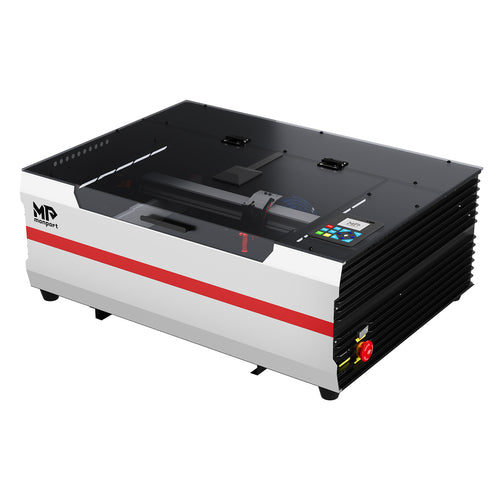
Glass engraving is all about control: too much heat and you risk chipping or cracking; too little and the mark looks faint. This updated guide keeps the original intent (glass engraving with a Mega-class CO2 laser), but reframes it around Monport’s current promoted desktop model: Monport Mega S.

First, a quick reality check: “glass engraving” with a CO2 laser is usually glass etching
Most CO2 machines don’t carve deep into glass the way they cut acrylic. Instead, they create a frosted/etched mark by micro-fracturing the surface. That’s why technique (masking, moisture, and settings) matters as much as the machine.
Why Mega S fits production-style glass engraving
When you’re engraving glass awards, plaques, photo frames, or flat glass panels in batches, you need consistency. Mega S highlights a faster alignment workflow (“5-Minute Alignment”), camera preview, batch-oriented tools (Smart Batch Fill), and specs built around speed and repeatability. (Always confirm current details on the official page.) See Mega S specs & features.
Mega S specs that matter for glass workflows
- Laser power: 70W CO2
- Working space: 27.56" × 13.78" (700 × 350mm)
- Max working speed: 600mm/s
- Spot size: 0.03–0.08mm (supports fine-detail etching)
- Exhaust fan: > 500 CFM (helps keep the work area clearer)

Step-by-step: a cleaner glass etching method (less chipping, more even frost)
1) Choose the right glass surface
- Flat glass (plaques, mirrors, panels) is the easiest place to start.
- Avoid ultra-thin glass until you’ve dialed in settings.
- If the glass has a coating/paint layer, test first—coatings can change results dramatically.
2) Use a “heat control” helper: masking + moisture
Two common techniques to reduce chipping and create a whiter frost are:
- Masking (transfer tape or low-tack masking) over the engraving area
- Moist paper towel method (a thin damp layer) to absorb heat and reduce micro-cracks
Always test on a scrap or the back side first—glass types vary a lot.
3) Focus and stability matter more than “more power”
A consistent focus height improves uniformity across the design. Mega S highlights Auto Focus to adjust the head to an optimal height based on material thickness/height, which can help keep glass results more consistent across batches. Learn about Mega S workflow features.

4) Starter settings (use as a baseline, then test grid)
Use these as starting points only. Glass composition, thickness, and coatings change results. Run a small test grid before engraving a final piece:
- Power: low to moderate (start low; raise slowly only if the mark is too faint)
- Speed: moderate to fast (increase speed if you see chipping)
- Passes: usually 1 pass; consider 2 light passes instead of 1 heavy pass
- Line interval: tighter for “whiter” frost; loosen if the surface overheats
- Air assist: gentle airflow (too strong can dry out damp methods; too weak can leave residue)
Batch glass engraving tips (where Mega S workflow features help)
- Use camera preview: confirm placement before engraving, especially on premium glass blanks.
- Standardize jigs: a simple corner jig or fixture makes repeat jobs faster.
- Batch layout tools: if you’re engraving multiple identical shapes, batch-style tools can reduce manual layout time.
Important compatibility note for cylindrical glassware
Many users engrave wine glasses and tumblers with a rotary attachment. However, Monport’s Mega S page includes a note that “All Rotary Accessories in the website are not compatible with this product.” If your workflow depends on rotary engraving, verify your exact setup/compatibility before purchasing.
Watch Video
Ready to evaluate Mega S for your glass engraving workflow? Explore Monport Mega S here.