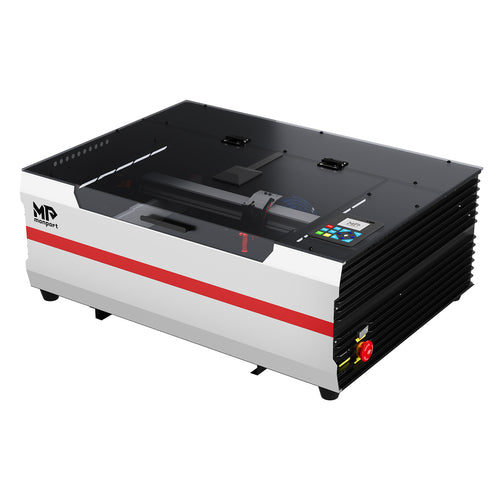
This refresh keeps the original topic and URL intent—using a Mega-class CO2 laser machine to create next-level wood engraving art— but updates the machine positioning to Monport’s current promoted desktop model: Monport Mega S. Mega S is listed as a 70W CO2 desktop laser with a 700 × 350mm working space and up to 600mm/s max working speed, built for repeatable, production-style crafting.

Why wood engraving is the perfect “art material” for CO2 lasers
Wood is forgiving, expressive, and endlessly sellable. You can create everything from fine-line illustrations and photo engravings to bold signage, layered art, inlays, and branded product packaging. The secret to “engraving wood like never before” isn’t just power— it’s consistency: accurate placement, stable focus, and smoke control so your details stay crisp.
What makes Mega S a strong upgrade for creative wood engraving
Mega S highlights workflow features aimed at reducing trial-and-error—like camera preview for placement, one-click material parameters, batch-oriented tools, and Auto Focus—so you spend less time re-aligning and more time creating. If you want the official spec list and features, verify details here: Mega S product page.
Mega S specs that matter for wood engraving art
- Laser power: 70W CO2
- Working space: 27.56" × 13.78" (700 × 350mm)
- Max working speed: 600mm/s
- Detail support: recommended 300DPI, supports up to 1000DPI
- Air assist: 50kPa
- Exhaust fan: > 500 CFM

Pick the right wood for your “signature style”
Best woods for clean detail
- Basswood / linden: even grain, great for portraits and fine line art.
- Maple: premium look, clean engrave, strong for signage and gifts.
- Birch plywood: strong contrast—test because glue layers vary by supplier.
Woods that need more testing
- Pine: resin can darken and burn unevenly—lean on exhaust + air assist and run a test grid.
- Oily/dense hardwoods: may engrave lighter—test first and adjust for contrast.
A repeatable workflow for “gallery-grade” wood engraving
1) Prep the surface (so smoke doesn’t become your texture)
- Wipe off dust before engraving.
- Optional: use low-tack masking film to reduce smoke staining on light woods.
- Flatten warped boards—uneven height = uneven focus.
2) Place your art accurately (camera preview helps)
Your design is only as good as its placement. For signs, framed art, and product batches, use a simple jig + camera preview workflow so you can confirm alignment before engraving (especially when you’re engraving near edges or on pre-cut blanks).
3) Lock focus for crisp lines and consistent shading
Focus consistency is what separates “okay” from “professional.” Mega S highlights Auto Focus to help keep focus height consistent when material thickness varies—useful when you’re working across different wood blanks. See Mega S workflow features.

4) Use starter settings (then dial in with a quick test grid)
Wood varies by species, moisture, grain, glue layers, and finish. Treat these as safe starting ranges:
- Power: low–mid (increase gradually for deeper/darker marks)
- Speed: mid–fast (increase speed if you see charring)
- Line interval: tighter for photos/detail; loosen if overheating causes haze
- Air assist + exhaust: keep enabled for cleaner results
Art ideas that look “impossible” until you try them
- Photo engravings on basswood with a consistent DPI workflow
- Layered wall art (engrave + cut stacked layers for depth)
- Topographic maps and line-art cityscapes
- Inlay-style designs (engrave pockets, then fit contrasting material)
- Branded product sets (coasters, boxes, tags) using repeat jigs
Batch tips for selling your wood engraving
- Standardize blanks: same supplier/thickness reduces surprises.
- Use jigs: faster reloads, fewer placement errors.
- Batch layout tools: Mega S highlights Smart Batch Fill for repeating shapes and quicker setup.
- Keep dust controlled: cleaning improves consistency over time.

If you want to upgrade your wood engraving workflow with faster setup and more repeatable results, start with Mega S here: Explore Monport Mega S.